Audio Editing Techniques
Read at your own pace. Code execution, quizzes, progress tracking, and the AI tutor are available in the interactive view with JavaScript enabled.
Editing Starts Here
From good take to usable file
In Recording Skills and Studio Etiquette, you built the habit of capturing clean levels, marking takes, and keeping the session respectful.
Now we move one step down the production line: turning those raw takes into audio a client can actually use.
Audio editing is not magic glitter. It is closer to mixing a clean R&B vocal: the performance should still feel human, but the distractions should disappear.
By the end of this lesson, you will know how to:
- Choose the best take pieces
- Remove obvious mistakes and long dead air
- Handle breaths without making the read sound robotic
- Use fades to prevent clicks
- Check levels before export
- Deliver a simple, clean file
Next lesson, you will use these skills to shape a practice demo. For now, we focus only on making one voiceover recording clean and usable.

The Edit Chain
The simple editing chain
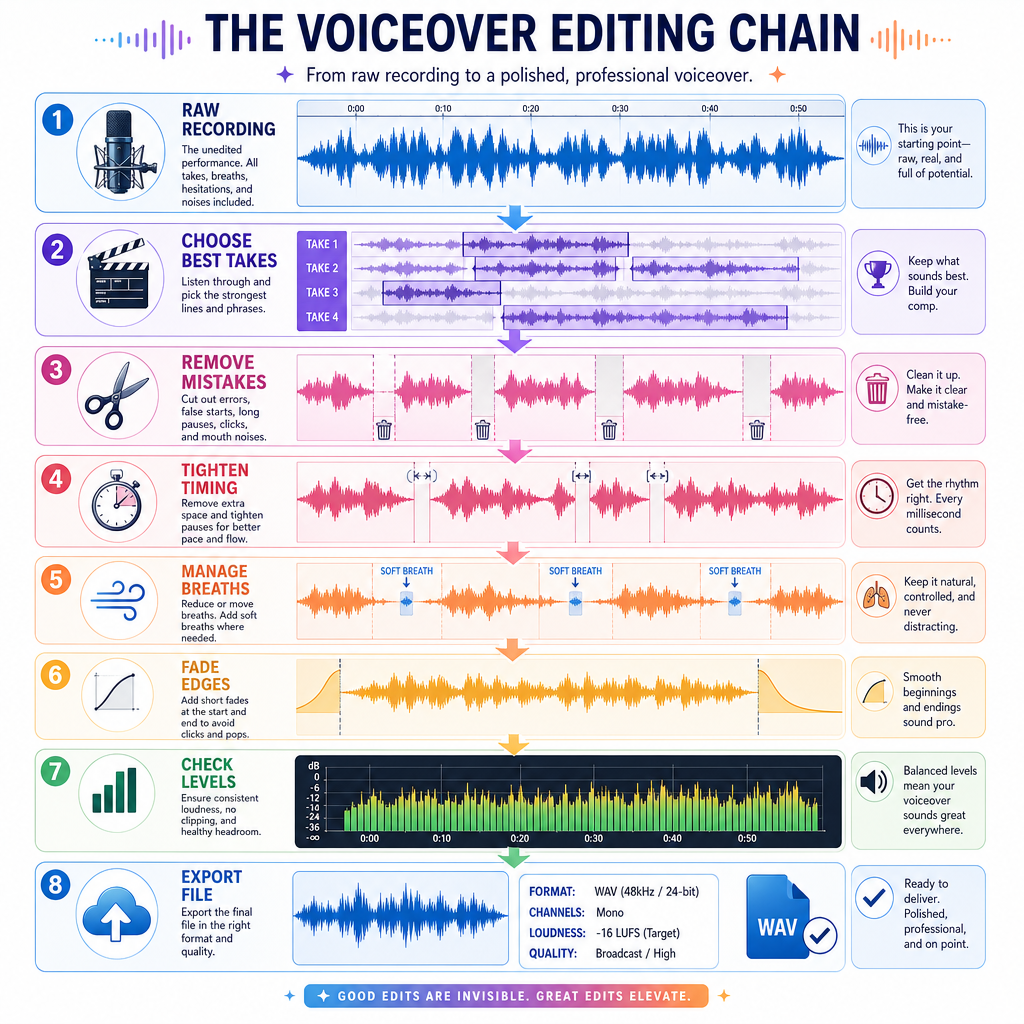
Think of editing as a sequence, not a random cleanup sprint.
A practical voiceover edit usually follows this order:
Raw Recording
     ↓
Choose Best Takes
     ↓
Remove Mistakes
     ↓
Tighten Timing
     ↓
Manage Breaths
     ↓
Fade Edges
     ↓
Check Levels
     ↓
Export File
Why this order matters:
- Choose first so you do not polish a bad take.
- Cut mistakes early so the timeline gets easier to hear.
- Tighten timing after the performance is assembled.
- Breaths and fades come after the big structure is right.
- Levels and export happen when the file is otherwise finished.
Do not chase tiny problems too early. Editing is like building a track: arrange the song before you obsess over the hi-hat reverb.
Spot The Goal
A client asks for a clean voiceover file. What is the best editing goal?
Cut With Intent
Make edits from decisions
A strong edit is not just “delete stuff.” It is a series of decisions:
- Keep this phrase because the intention is clear.
- Replace that word because the second take was cleaner.
- Shorten this pause because it breaks momentum.
- Leave that breath because it makes the line feel alive.
Here is a simple JavaScript model of an edit decision list. This mirrors what you do visually in a DAW: pick the segments that belong in the final read.
```javascript
const rawSegments = [
  { label: "Take 1: warm opening", keep: true, seconds: 4.2 },
  { label: "Mouth click", keep: false, seconds: 0.4 },
  { label: "Take 1: wrong product name", keep: false, seconds: 3.1 },
  { label: "Take 2: correct product name", keep: true, seconds: 2.9 },
  { label: "Long silence", keep: false, seconds: 2.0 },
  { label: "Take 1: confident closing", keep: true, seconds: 5.0 }
];

const finalEdit = rawSegments.filter(segment => segment.keep);
const finalLength = finalEdit.reduce((sum, segment) => sum + segment.seconds, 0);

console.log("Final edit segments:");
finalEdit.forEach((segment, index) => {
  console.log(`${index + 1}. ${segment.label} (${segment.seconds}s)`);
});
console.log(`Final length: ${finalLength.toFixed(1)} seconds`);
```
Clean Not Sterile
True or false: A clean voiceover edit should usually remove every breath, every pause, and every trace of human timing.
Breaths And Noise
Handle breaths like performance marks
Breaths are not automatically bad. They can signal energy, intimacy, urgency, or thought.
Use this rule of thumb:
Distracting breath?  Reduce or remove.
Natural breath?     Keep or soften.
Noisy inhale?       Replace with room tone or lower it.
Breath before big line? Maybe keep it for momentum.
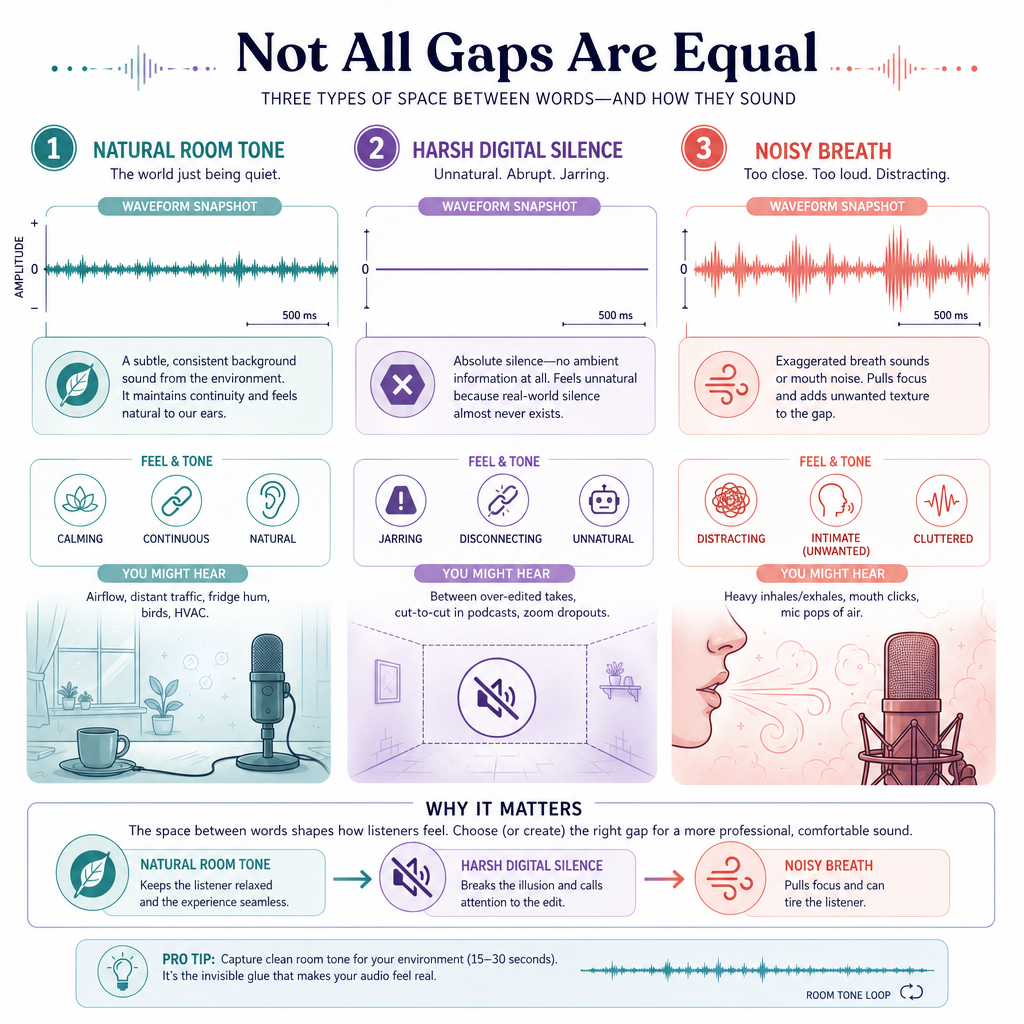
Room tone matters
Room tone is the quiet sound of your recording space when you are not speaking. It is not digital silence. It has the same tiny background texture as the rest of your recording.
When you cut out a mistake, replacing the gap with room tone often sounds smoother than leaving absolute silence.
For voiceover, silence can be suspicious. Consistent quiet feels professional.
Name The Smoothener
A tiny fade or overlap used to smooth the boundary between two edited audio clips is called a ______.
Loudness Targets
Check level before delivery
You do not need to become a mastering engineer to submit early voiceover work, but you do need to avoid obvious level problems.
Common issues:
- Too quiet: the client has to boost it.
- Too loud: the audio clips or distorts.
- Uneven: one sentence jumps out, the next disappears.
A simple beginner habit: after editing, check the loudest peak and leave safe headroom unless the client gives exact specs.
Here is a simplified model of peak normalization. Real audio tools do this with waveform data, but the idea is the same: find the loudest moment, then apply a gain change.
```javascript
const peaksDb = [-18, -12, -9, -6, -15, -10];
const targetPeakDb = -3;

const loudestPeak = Math.max(...peaksDb);
const gainNeeded = targetPeakDb - loudestPeak;

const adjustedPeaks = peaksDb.map(peak => peak + gainNeeded);

console.log(`Loudest original peak: ${loudestPeak} dB`);
console.log(`Gain adjustment: ${gainNeeded >= 0 ? "+" : ""}${gainNeeded} dB`);
console.log("Adjusted peaks:", adjustedPeaks);
console.log(`New loudest peak: ${Math.max(...adjustedPeaks)} dB`);
```
Quality Control Pass
Do one final listen like a client
After editing, step away for a minute. Then listen from start to finish without touching the controls.
Your quality control pass asks:
- Did any edit click or pop?
- Are there strange empty gaps?
- Did I cut off the start or end of a word?
- Are breaths natural, not distracting?
- Is the level steady enough?
- Does the file match the requested format?
This is where your earlier Take Discipline helps. Clean markers and organized takes make final QC faster.
Here is a tiny checklist program that flags common delivery risks.
```javascript
const voiceoverFile = {
  hasClicks: false,
  hasClippedPeaks: false,
  hasLongDeadAir: true,
  format: "wav",
  requestedFormat: "wav",
  startsCleanly: true,
  endsCleanly: true
};

const issues = [];

if (voiceoverFile.hasClicks) issues.push("Remove clicks or pops.");
if (voiceoverFile.hasClippedPeaks) issues.push("Lower level or re-export without clipping.");
if (voiceoverFile.hasLongDeadAir) issues.push("Trim or fill long dead air with room tone.");
if (voiceoverFile.format !== voiceoverFile.requestedFormat) issues.push("Export in the requested format.");
if (!voiceoverFile.startsCleanly) issues.push("Fix clipped opening word.");
if (!voiceoverFile.endsCleanly) issues.push("Fix cut-off ending.");

if (issues.length === 0) {
  console.log("QC passed: ready to send.");
} else {
  console.log("QC issues to fix:");
  issues.forEach(issue => console.log(`- ${issue}`));
}
```
Client Ready Export
Export like a professional
Your edit is not finished until the file is easy for someone else to use.
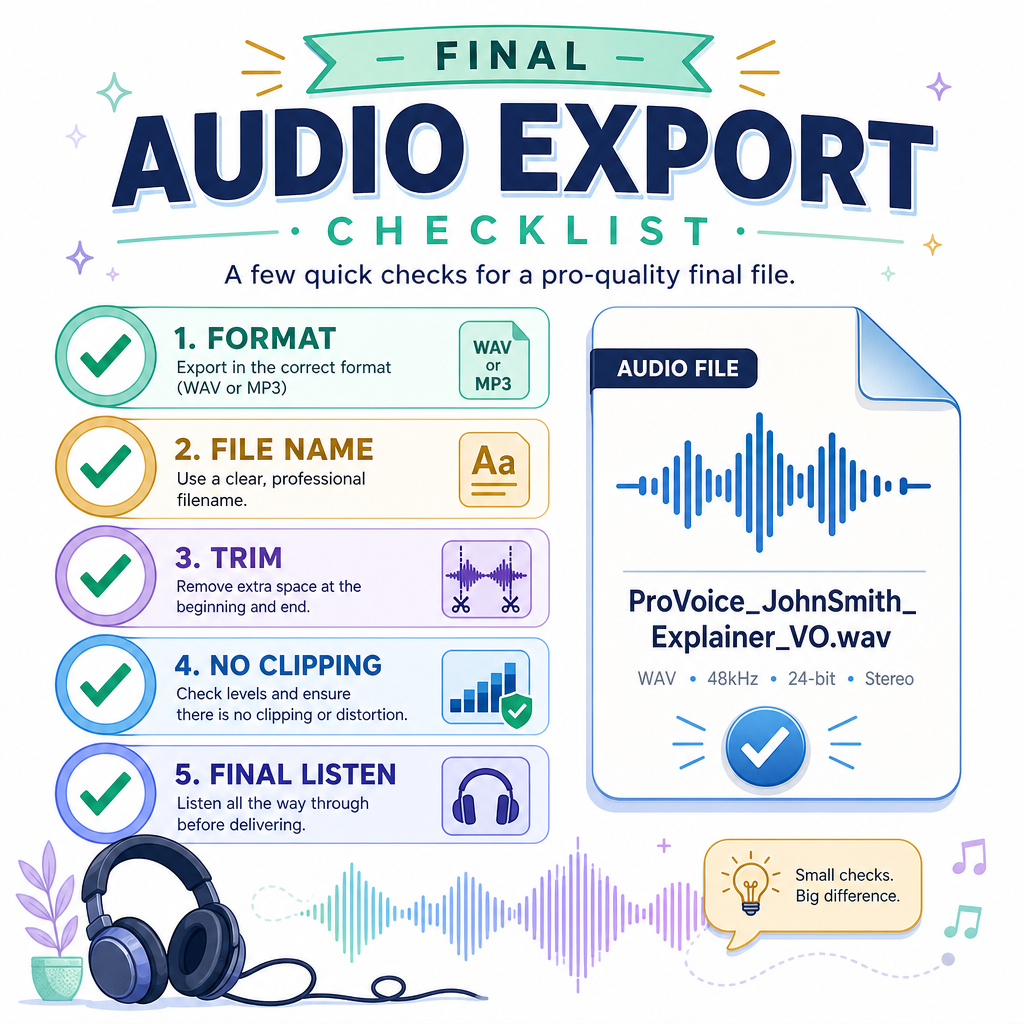
Before exporting, confirm:
- Format: WAV or MP3, depending on the request
- File name: clear and specific
- Start/end trim: no accidental long silence
- No clipping: the waveform is not smashed at the top
- One final listen: exported file plays correctly
Simple naming pattern
YourName_Project_ScriptVersion_Take.wav
Example:
MayaRivera_SmoothSkinAd_v1_TakeA.wav
A clean file name tells the client, “I am easy to work with.” That matters when you start booking real jobs later in the course.
For now, your mission is simple: make the best take sound clear, natural, and ready to share.