Linux Bash Commands Cheat Sheet
Read at your own pace. Code execution, quizzes, progress tracking, and the AI tutor are available in the interactive view with JavaScript enabled.
Introduction
Computers provide two kinds of interfaces to the user:
- Graphical User Interface (GUI), and
- text-based interfaces (through command line or terminal)
These interfaces allow you to navigate through the operating system and file system. In text-based interfaces, a command line interpreter or shell is used to interpret the given commands by the user. This tutorial focuses on one such popular shell known as bash. It is the default shell of most Linux distributions and Apple's macOS.
Bash
Bash
Bash allows users to provide commands through which the user can specify what they want to do. Before providing the commands, bash displays a prompt, as you open the command line (in Linux and macOS), such as the one below.
user@localhost:~$
This prompt would typically state the current username with the hostname of the system. By default, the current directory of the terminal will be the user's root (or home) directory.
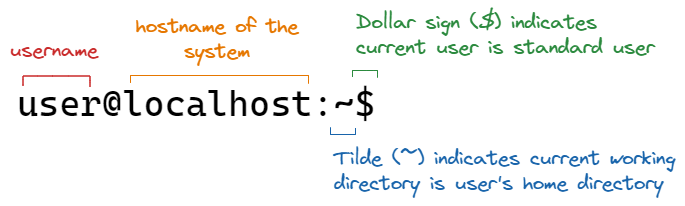
After a command has finished executing, this prompt will be displayed again indicating that the shell is now ready to execute another command. These commands that you provide will be displayed after the prompt.
Command Anatomy
Command Anatomy
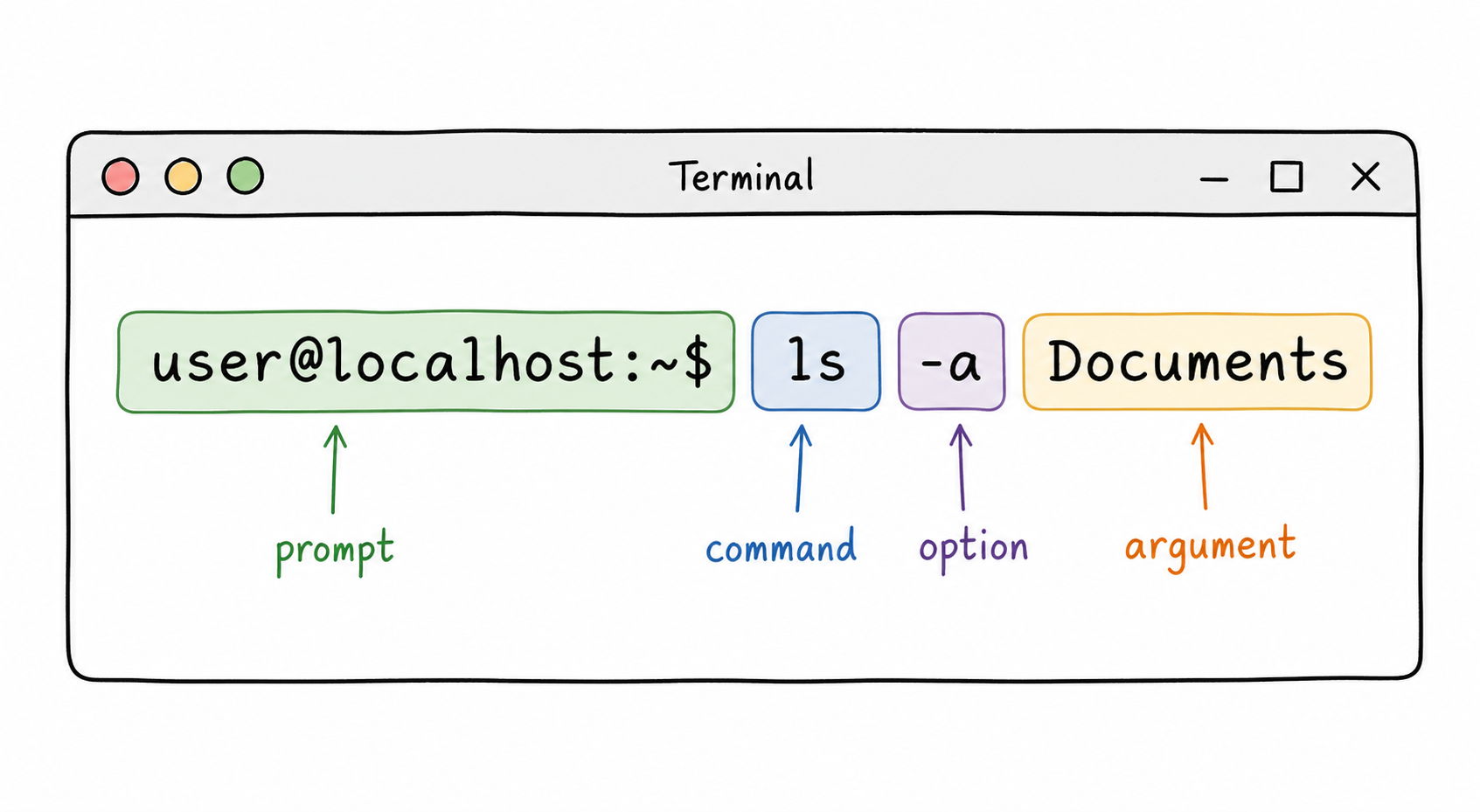
Most bash commands follow the same general pattern:
command [option] <argument>
- The command is the action you want to perform, such as
ls,cd, ormkdir. - An option changes how the command behaves. Options often start with a dash, such as
-a. - An argument is the thing the command acts on, such as a file name, directory name, or path.
For example:
user@localhost:~$ ls -a Documents
Here, ls is the command, -a is the option, and Documents is the argument.
Also remember that the prompt itself is not part of the command. In the examples, you type what comes after the $ symbol.
Bash Basic Commands
Bash Basic Commands
Using bash is all about knowing about its different commands. Using a combination of these commands with various options makes bash extremely powerful.
Basic bash commands are mostly related to system navigation. Consider an example where the home directory looks something like the following. We will use this example in the explanation of various commands below.

echo
echo
echo is the most basic command in bash, which displays its arguments on standard output (on the terminal).
Syntax: echo[option]<text>
user@localhost:~$ echo "Hello World!"
Hello World!
user@localhost:~$ echo Hello World!
Hello World!
Note that it is not necessary to enclose the text after the keyword echo in quotation symbols. However, it is recommended that you do so.
Another use of echo is when you want to display the value of system variables. For this, you need to use a dollar sign ($) before the variable name. For example, we can check the value of the current shell using the following command.
user@localhost:~$ echo $SHELL
/bin/bash
pwd
pwd
pwd is a command that stands for Print Working Directory. It displays your current working directory as output.
Syntax: pwd[option]
user@localhost:~$ pwd
/home/user
ls
ls
ls is a command short for list. It lists down the contents of a directory. By default, it lists the contents of the current working directory. From the example introduced at the start of the section, if we list down the contents of our current directory we get,
Syntax: ls[option]<location>
user@localhost:~$ ls
Documents Pictures Videos
ls is mostly used with options unlike pwd or echo which are mostly used without them (even though options are available for them). ls can also take an optional argument (specified after options, if any), which can be the location of the directory.
Let's look at the usage of ls using the -a option. This option enables us to view hidden files. In the code block below, the files with a preceding dot ., are hidden files. These hidden files are not visible on GUI unless you enable the option to view them.
user@localhost:~$ ls -a
Documents Pictures .temp_file Videos .webpage
Fill in
In bash, which shortcut is used with cd to move to the parent directory?
Fill in the blank: _____________
cd
cd
cd is a command to change directory. By providing a path along with this command, we can change the current directory to a different directory. This command does not give an output and only changes the directory. You can later use ls to display the directory contents to check that the current directory has been changed.
Syntax: cd[option]<directory>
user@localhost:~$ cd Documents
user@localhost:~$ ls
file1.txt
user@localhost:~$ cd ..
user@localhost:~$ ls
Documents Pictures Videos
In the above example, we used a shortcut .. to change back to the parent directory. This can be used several times in a single path to go up the hierarchy of parent directories. Of course, you can provide the entire path to the directory as well.
Multiple Choice
The command cd changes ____.
True or False
The command echo can take options.
Bash Commands for File Modifications
Bash Commands for File Modifications
Working with files means modifying them in any capacity. Renaming, moving, creating, and deleting new files are the basic operations when working with files. Let's have a look at these operations using bash in this section.
mkdir
mkdir
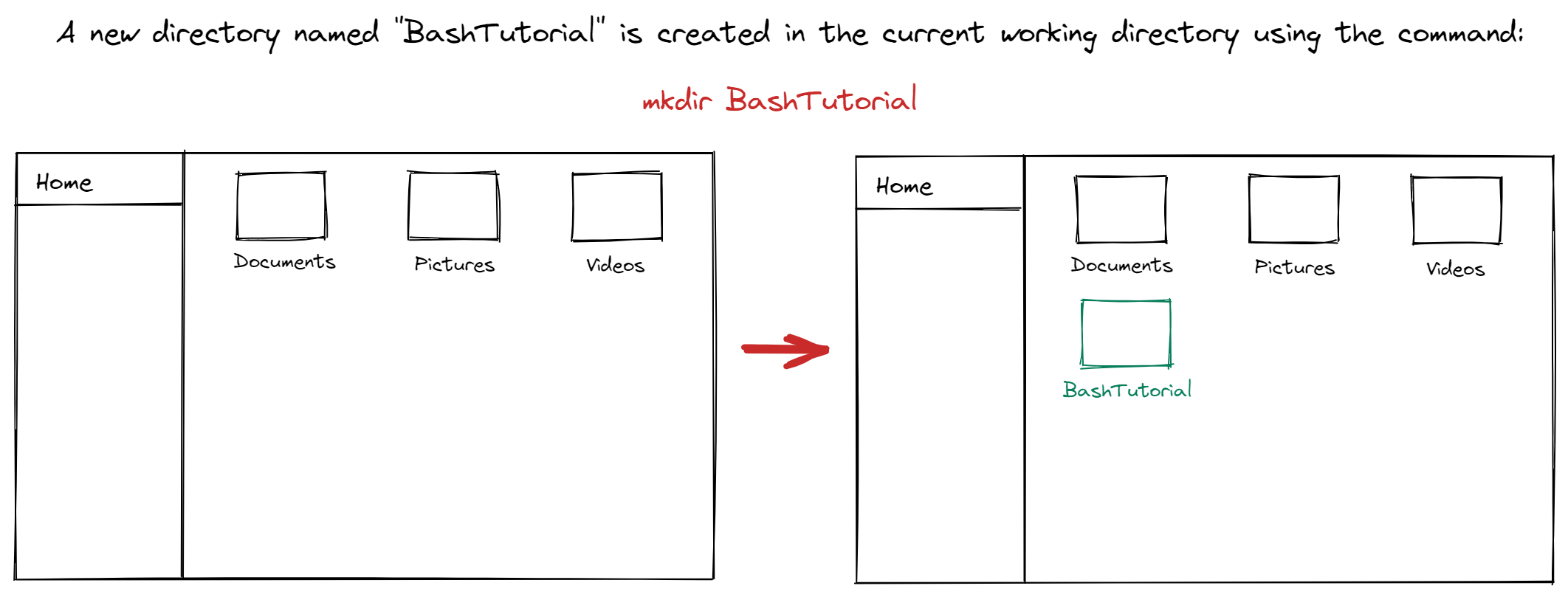
mkdir is a command short for Make Directory. It creates a new directory with the specified name.
Syntax: mkdir[option]<directory name>
user@localhost:~$ mkdir BashTutorial
user@localhost:~$ ls
BashTutorial Documents Pictures Videos
rmdir
rmdir
rmdir is a command for Remove Directory. It removes the specified directory. It should be noted that the directory to be removed must be empty or the terminal will throw an error.
Syntax: rmdir[option]<directory name>
user@localhost:~$ rmdir BashTutorial
user@localhost:~$ ls
Documents Pictures Videos
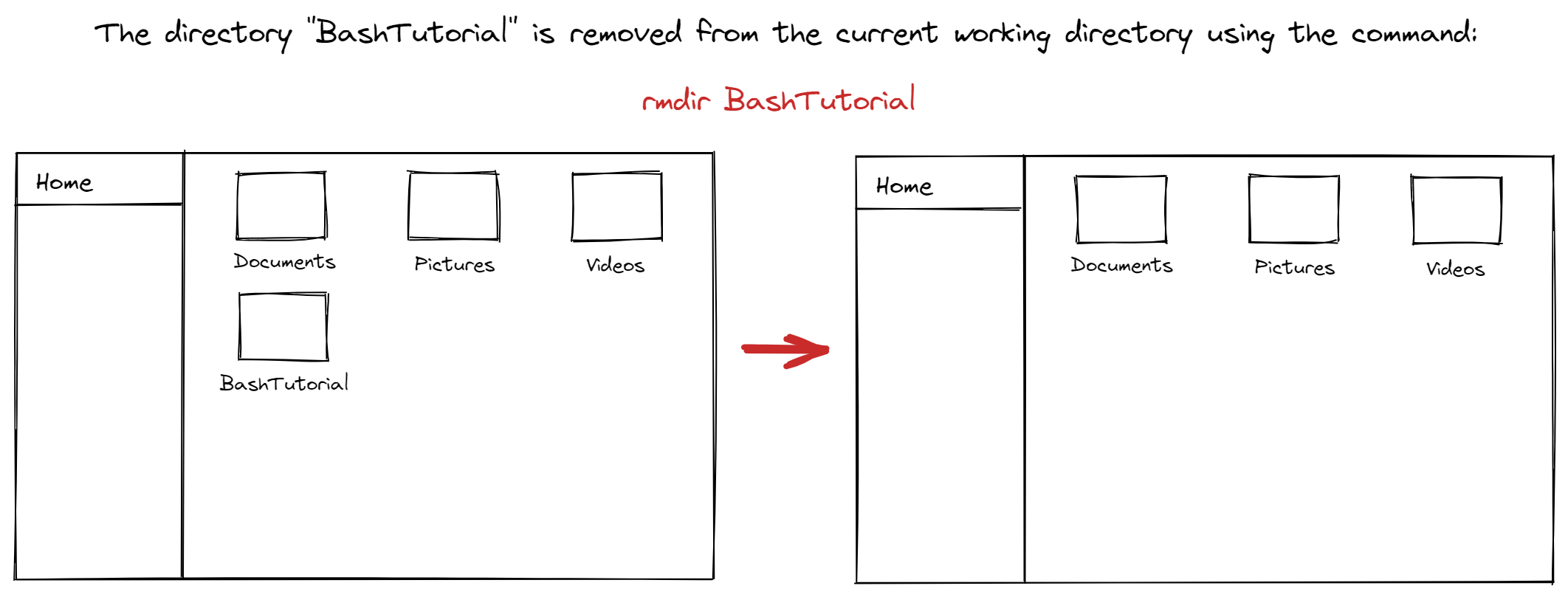
Another important thing to note is that when working with the command line, there is no undo option. Once you remove a directory, you won't be able to restore it. So be careful with what you delete!
touch
touch
touch is a command used for creating blank files. This command only creates a blank file and does not add anything to it.
Syntax: touch[option]<filename>
user@localhost:~$ touch Newfile
user@localhost:~$ ls
Documents Newfile Pictures Videos
rm
rm
rm is the command for removing files. Similar to rmdir, this action cannot be undone so careful use is recommended.
Syntax: rm[option]<filename>
user@localhost:~$ rm Newfile
user@localhost:~$ ls
Documents Pictures Videos
A helpful option available for rm is -r. Adding this option allows us to remove non-empty directories with ease, as it recursively goes through all the files and sub-directories inside a directory and deletes them.
user@localhost:~$ rmdir Videos
rmdir: failed to remove 'Videos': Directory not empty
user@localhost:~$ rm -r Videos
user@localhost:~$ ls
Documents Pictures
mv
mv
mv is a command used to move a file or a directory. We can specify this using the syntax below, where source and destination are paths to the file or directory that needs to be moved.
Syntax: mv[option]<source><destination>
user@localhost:~$ ls
Documents Pictures Videos example1
user@localhost:~$ mkdir NewFolder
user@localhost:~$ mv example1 NewFolder/
user@localhost:~$ ls
Documents NewFolder Pictures Videos
user@localhost:~$ cd NewFolder
user@localhost:~$ ls
example1
mv is a helpful command that can also be used for renaming files. If we specify the destination path the same as the source path, but with a different name, then we can rename the file.
user@localhost:~$ ls
Documents Pictures example1
user@localhost:~$ mv example1 linux_example
user@localhost:~$ ls
Documents Pictures linux_example
Fill In
_____ command creates new files and _____ command creates new directories.
True or False
Will the following command rename a file?
user@localhost: ls
pic1 pic2
user@localhost: mv pic1 pic2/
Learn More
Learn More
Note: For most of the commands discussed above, you can provide options to customize bash commands. To find out the list of options available for each command, --help option can be used with the command (for example, to get the list of options for the command ls, ls --help is used).
We've made it! To dive deeper into Linux and Bash commands, check out our guide to advanced commands for more.
One Pager Cheat Sheet
One Pager Cheat Sheet
- In this lesson, we will learn about
bashand its basic commands, with a focus on understanding how to perform operations using the command line. -
Bash enables users to provide
commandsafter aprompt, which then executes these commands and displays the prompt again when done. - - Bash commands commonly follow the pattern
command [option] <argument>. - With basic Bash commands you can
navigatethrough a system to effectively manage files and directories. - The
echocommand displays its arguments on the standard output on the terminal, with an optional option, and can also be used to output the values of system variables when preceded with a dollar sign ($). - The command
pwdis used toPrint Working Directory, displaying the current directory in the output. -
lsis a command used to list down the contents of a directory, often withoptionsor a specificlocationspecified. - - Use
cd ..to move up to the parent directory. - We can use the
cdcommand tochange directoryboth with a specificpathand by goingup the hierarchy of parent directorieswith a shortcut. - The
echocommand can be modified usingoptions,flagsand/orswitches, such as-n, to alter its default behavior of ending the output with a newline character. - Through the use of bash commands, files can be
renamed,moved,created, anddeleted. - The
mkdircommand allows users toMake Directorywith the specified name, using the syntaxmkdir[option]<directory name>. - Using
rmdirwith thesyntax: rmdir[option]<directory name>removes a specified and empty directory, however, there is no undo option so users should exercise caution. - The
touchcommand is used to create blank files with thesyntaxtouch[option]<filename>. - The command
rmis used toremovefiles, with the addition of the-roption allowing therecursiveremoval of non-empty directories. - The
mvcommand can be used to move or rename a file or directory. - The
touchcommand is used to create empty files and update file timestamps, while themkDIRcommand is used to create new directories that don't already exist. - This command does not rename the file but instead moves it using the
mvcommand to a different directory. -
To customize Linux and Bash commands, use--helpoption with a command and for more advanced commands and tips, refer to our guide to advanced commands.