Building a Calculator
Read at your own pace. Code execution, quizzes, progress tracking, and the AI tutor are available in the interactive view with JavaScript enabled.
From Basics To App
Why this lesson matters
In Introduction to C# Programming, you learned the shape of a C# program, how values have types like int, double, and string, and how program flow moves step by step.
Now we’ll turn those basics into something that feels like a real Windows app: a calculator.
A calculator is a perfect first desktop project because it combines:
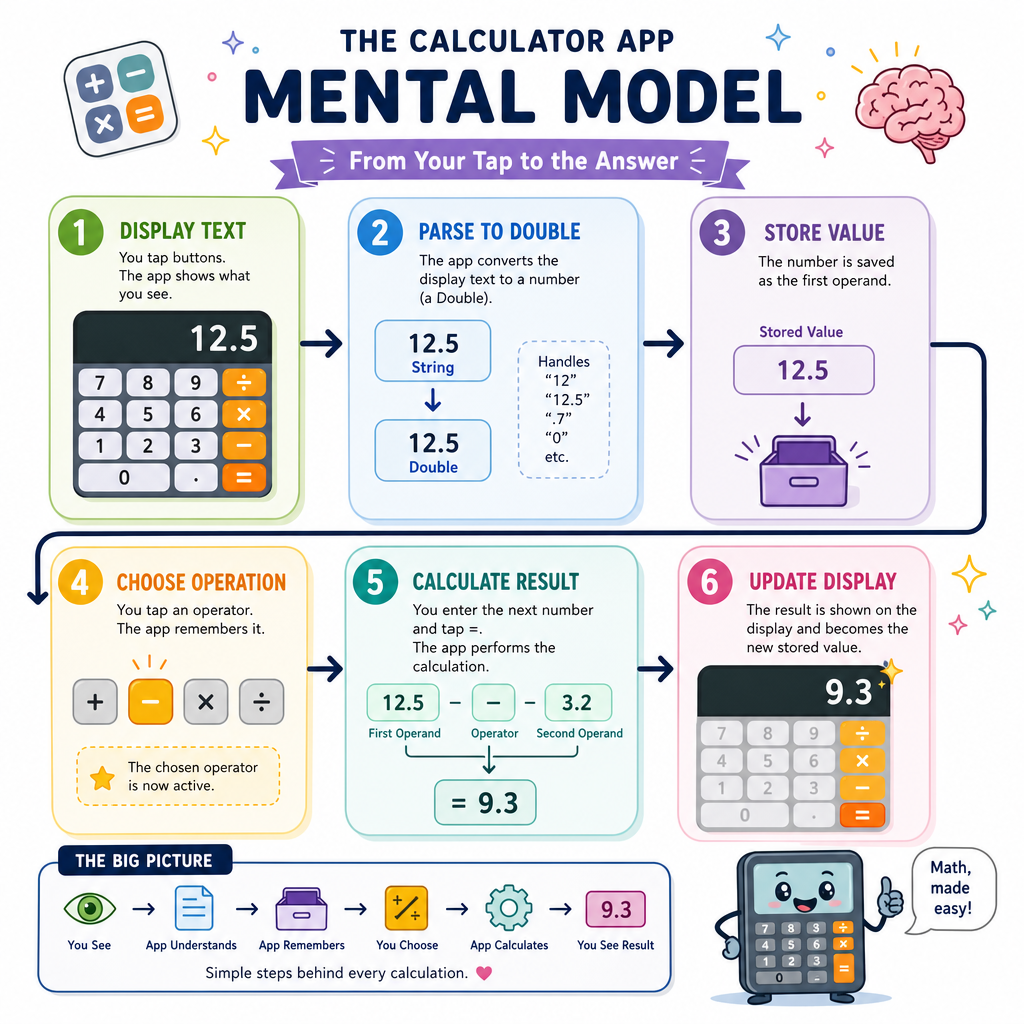
- Input: the user clicks buttons or types numbers
- State: the app remembers the current number and operation
-
Logic:
+,-,*,/, and equals - Output: the display updates immediately
Think of it like a fitness tracker for numbers: every button press is one rep, and the display shows the result of the workout.
Calculator Blueprint
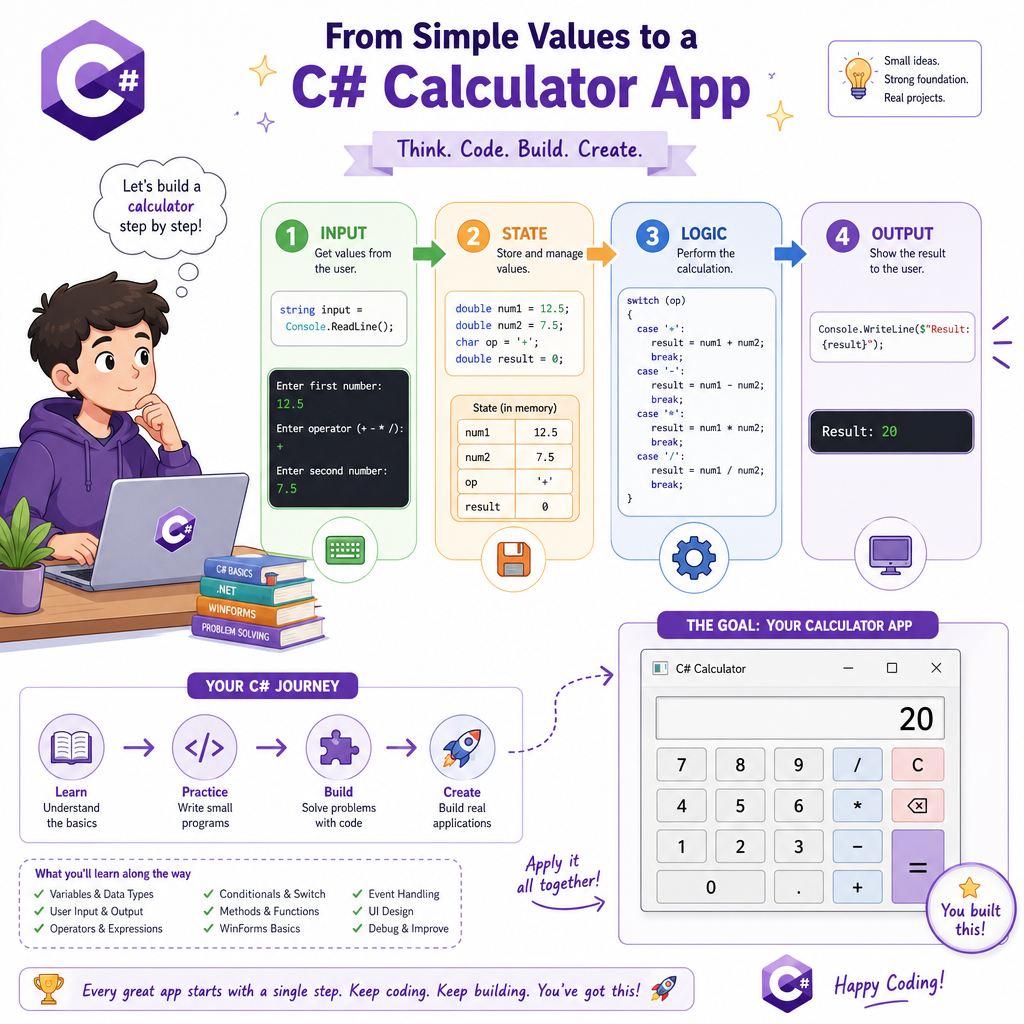
The app has four moving parts
Before we write code, let’s name the pieces. This keeps the project from feeling like random buttons everywhere.
User action        App responsibility
-----------        ------------------
Click 7       ->   put 7 on the display
Click +       ->   remember the operation
Click 3       ->   put 3 on the display
Click =       ->   calculate 7 + 3
A simple calculator needs:
- Display — what the user sees
-
Number buttons —
0through9, plus decimal point -
Operation buttons —
+,-,*,/ - Equals and Clear — finish or reset the calculation
In a Windows desktop app, these are visual controls. In this lesson, we’ll focus on the logic that those controls trigger.
Parsing Display Text
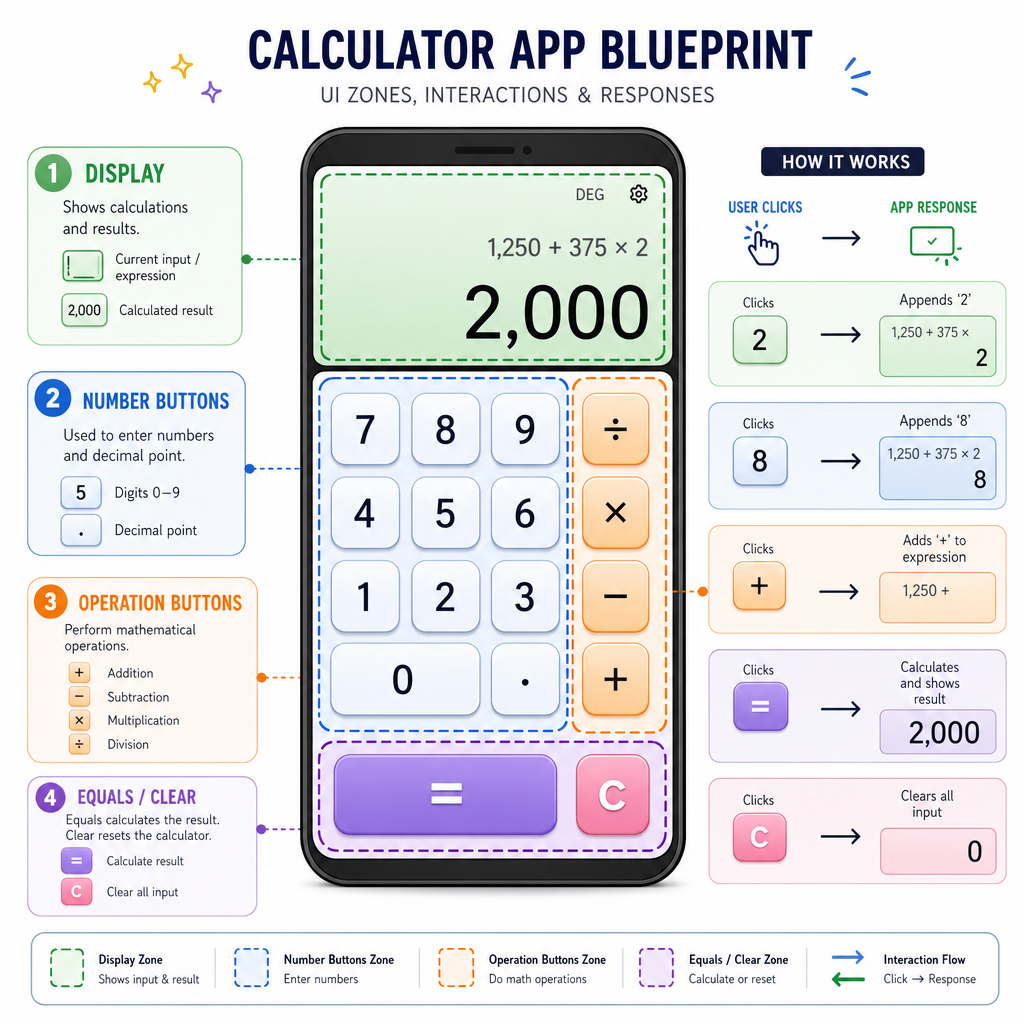
The display is text, but math needs numbers
A calculator display usually shows text like "42" or "3.14".
But C# cannot do real math with text. We need to convert that text into a numeric type. For beginner calculators, double is a practical choice because it supports decimals.
This is similar to Python’s float("3.14"), but in C# we often use double.TryParse so the program can handle bad input safely instead of crashing.
```csharp
using System;

string displayText = "12.5";

if (double.TryParse(displayText, out double number))
{
    Console.WriteLine($"Parsed number: {number}");
    Console.WriteLine($"Number plus 10: {number + 10}");
}
else
{
    Console.WriteLine("That was not a valid number.");
}

// Output:
// Parsed number: 12.5
// Number plus 10: 22.5
```
Pick The Type
You are building a calculator that should support values like 7, 12.5, and 0.75.
Which C# type is the best fit for the calculator’s current number?
Separate The Math
Keep calculation logic separate
A common beginner mistake is putting all the math directly inside button code.
Instead, make a small method whose job is only:
Given two numbers and an operation, return the result.
This makes the calculator easier to test, easier to debug, and easier to connect to buttons later.
Like a rap hook that repeats clearly, this method gives your app one reliable place where the core idea lives.
```csharp
using System;

static double Calculate(double left, double right, string operation)
{
    return operation switch
    {
        "+" => left + right,
        "-" => left - right,
        "*" => left * right,
        "/" => right == 0 ? double.NaN : left / right,
        _ => double.NaN
    };
}

Console.WriteLine(Calculate(10, 5, "+"));
Console.WriteLine(Calculate(10, 5, "*"));
Console.WriteLine(Calculate(10, 0, "/"));

// Output:
// 15
// 50
// NaN
```Events Drive Apps
Desktop apps wait for events
Console programs usually run from top to bottom.
Windows desktop apps are different: they mostly wait.
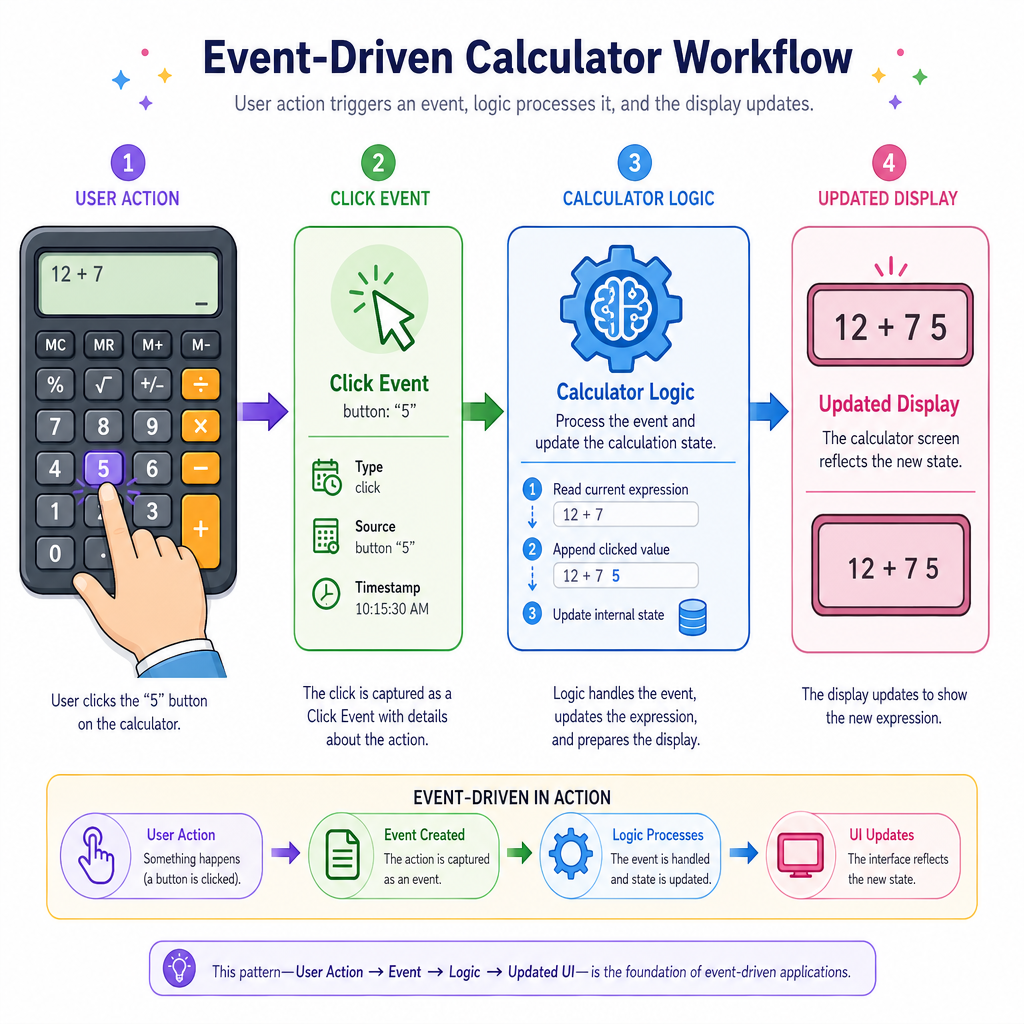
The user clicks a button, types into a box, or closes a window. Each action can trigger an event.
For a calculator, the most important event is usually:
Button clicked -> Click event runs -> display changes
You do not need to memorize every Windows Forms detail yet. The key mindset is: your code responds to the user.
Name The Event
In Windows Forms, the event that runs when the user presses a Button is named _____.
Type the event name exactly.
Calculator Wrap Up
What you can build now
You now have the core thinking behind a calculator app:
- The display may look like text, but math needs numeric values
-
doubleis useful for decimal-friendly calculator input - A separate calculation method keeps your logic clean
- Desktop apps respond to events like button clicks
- Calculator state remembers what happened before
=
A polished Windows version would connect this logic to visual controls: a display box, number buttons, operation buttons, equals, and clear.
Next, we’ll keep building practical desktop skills with Creating a Text Editor, where user input becomes editable saved text instead of calculated numbers.