Building a Simple Game
Read at your own pace. Code execution, quizzes, progress tracking, and the AI tutor are available in the interactive view with JavaScript enabled.
Your First Game
From apps to play
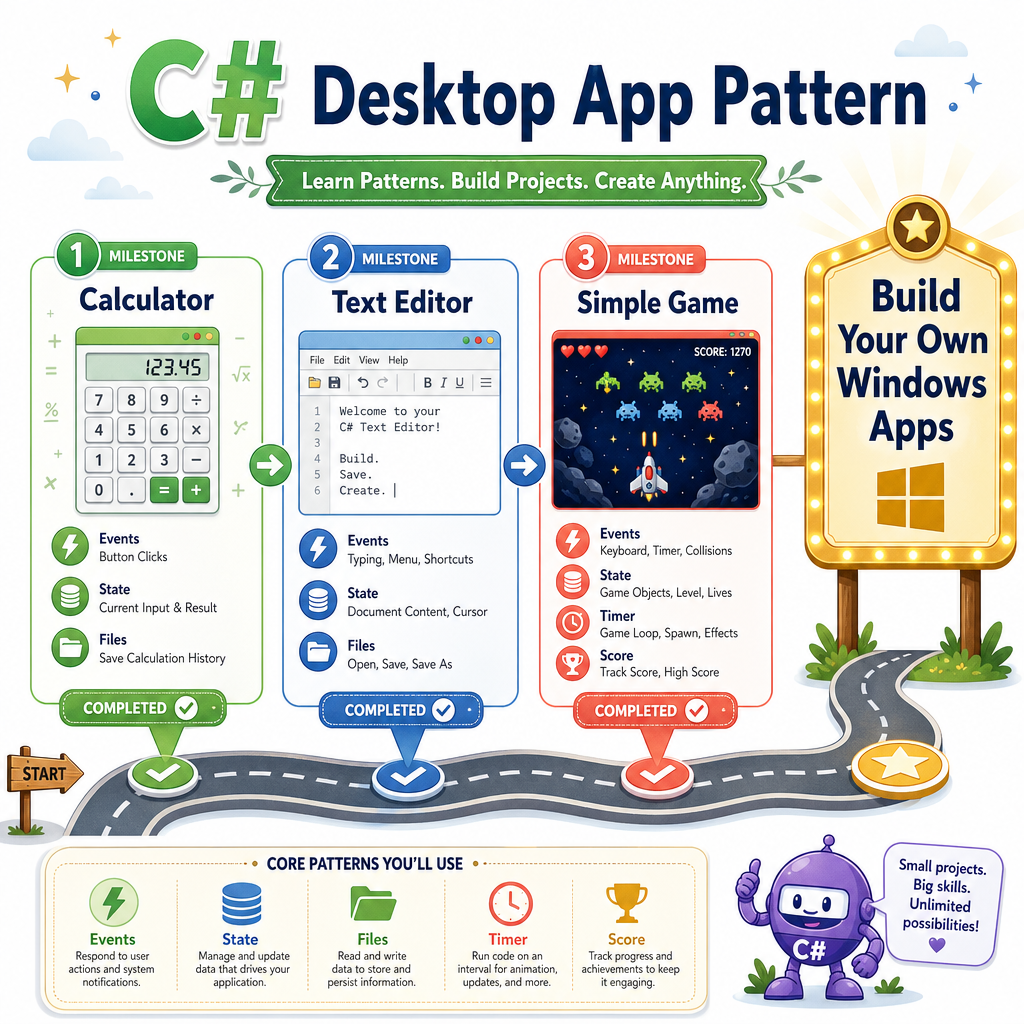
You’ve already built useful desktop-style projects:
- Introduction to C# Programming gave you values, types, and program flow.
- Building a Calculator showed how button clicks trigger code.
- Creating a Text Editor added real app habits: state, saving, loading, and protecting user work.
Now we’ll use those same skills to build something more dynamic: a simple game.
A game is still an app. It just has a tighter rhythm:
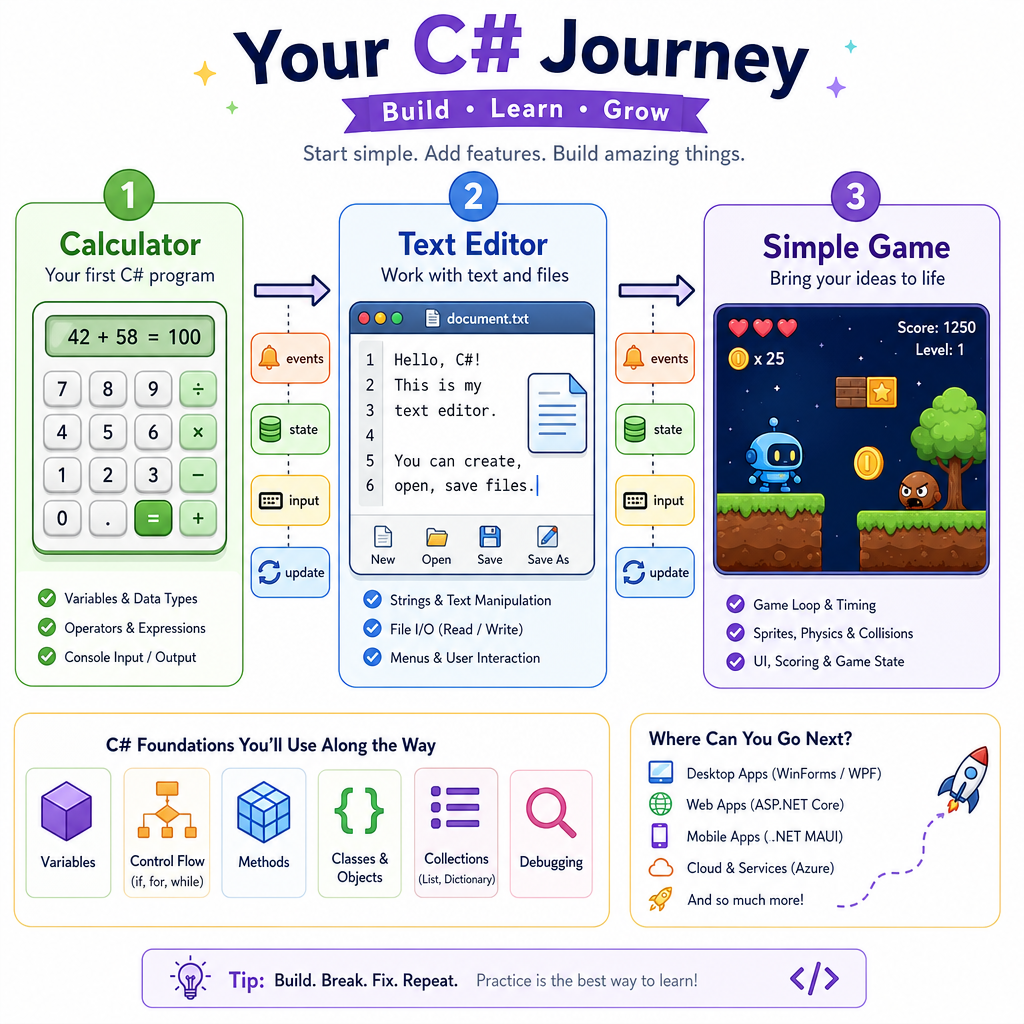
- Store the current situation.
- Read player input.
- Update the world.
- Show the new result.
- Repeat.
Think of it like a fitness set: rep, recover, rep, recover. A game repeats small actions until the round is over.
Game State Loop
The core game idea
Most beginner games can be explained with two words:
state + loop
State means the values that describe the game right now:
- player position
- enemy position
- score
- lives
- whether the game is over
The loop is the repeated cycle that changes that state.
Input → Update State → Render → Input → Update State → Render
In a Windows desktop game, the loop is often powered by a Timer instead of a manual while loop. But the mental model is the same.
You already practiced state in Creating a Text Editor when you tracked whether the document had unsaved changes. A game just tracks faster-changing state.
State Quiz
In a simple game, which of these is the best example of game state?
Simulate A Round
Build the game rhythm first
Before wiring buttons, panels, or keyboard events, it helps to simulate the game in plain C#.
This example has:
- a player standing on a number line
- a coin at position
3 - a list of simulated moves
- a score that increases when the player reaches the coin
This is similar to testing calculator button presses before trusting the full UI.
```csharp
using System;

class Program
{
    static void Main()
    {
        int playerX = 0;
        int coinX = 3;
        int score = 0;

        // Simulated player input: move right, right, right, left.
        int[] moves = { 1, 1, 1, -1 };

        Console.WriteLine("Game start!");
        Console.WriteLine($"Player: {playerX}, Coin: {coinX}, Score: {score}");

        foreach (int move in moves)
        {
            playerX += move;
            Console.WriteLine($"Player moved to {playerX}");

            if (playerX == coinX)
            {
                score += 10;
                Console.WriteLine("Coin collected! +10 points");
            }
        }

        Console.WriteLine($"Final score: {score}");
    }
}
```
Fill The Field
Complete the missing field name.
A game usually stores player progress in a variable like:
int _____ = 0;
Type the common variable name used to track points.
Desktop Game Shape
How this maps to a Windows app
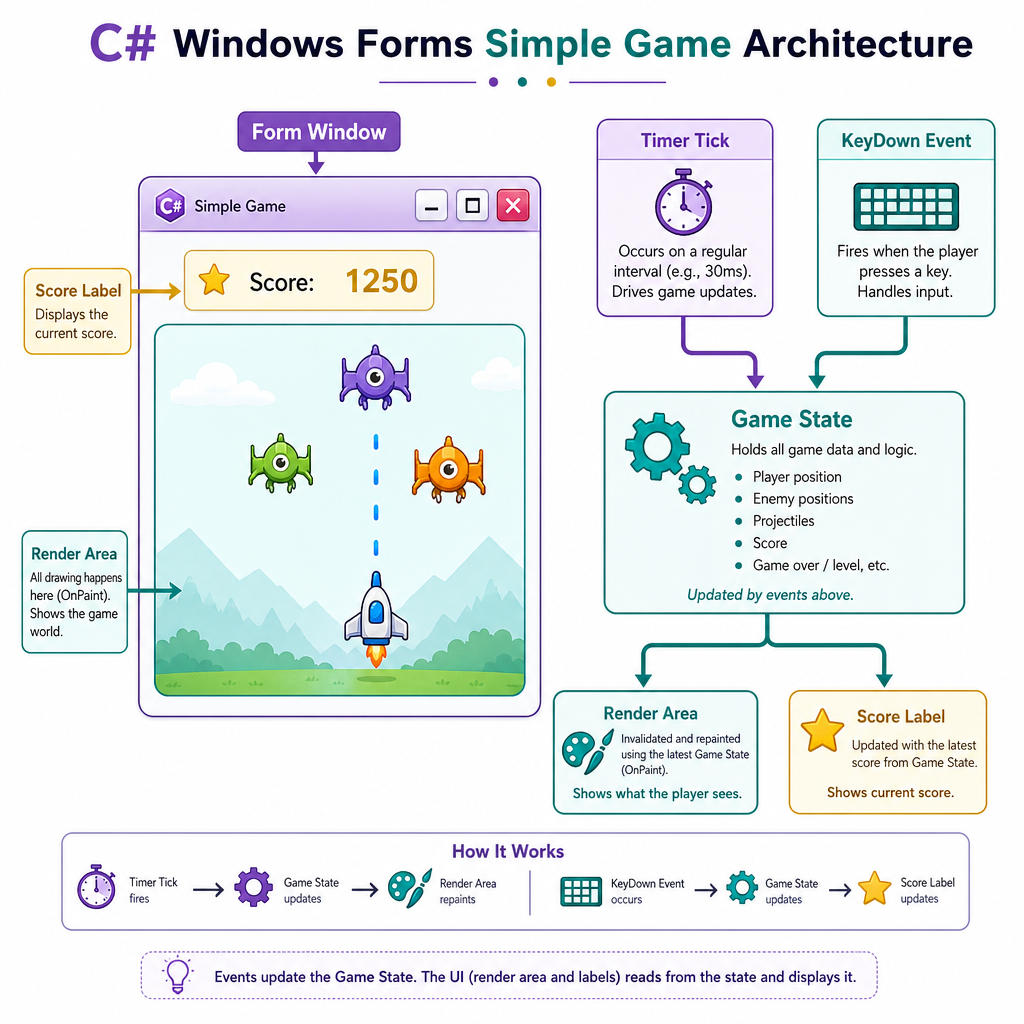
In a Windows desktop game, you do not usually ask the player for console input. Instead, the app reacts to events.
You already saw this pattern in Building a Calculator:
- button clicked → run calculation code
For a simple game, the events might be:
- key pressed → change player direction
- timer tick → move objects
- paint/render event → draw the game
- restart button clicked → reset state
A beginner-friendly Windows game might use:
Piece JobForm
The game window
Panel or drawing area
Where the game appears
Timer
Repeats updates every few milliseconds
Fields
Store score, positions, lives
Event handlers
React to keys, buttons, and timer ticks
The important idea: events drive the app, but state makes it feel like a game.
Timer Truth
True or false?
A Timer can help a desktop game update repeatedly without requiring the player to click a button every time something should move.
Event Style Logic
Practice the event-handler mindset
Here’s a console program that imitates what a desktop game does.
Instead of real keyboard events and timer ticks, we call methods named like event handlers:
OnKeyPressed(...)OnTimerTick()
This keeps the example executable while still matching the structure you would use in a Windows desktop app.
```csharp
using System;

class SimpleGame
{
    private int playerX = 0;
    private int direction = 0;

    public void OnKeyPressed(string key)
    {
        if (key == "Left") direction = -1;
        if (key == "Right") direction = 1;

        Console.WriteLine($"Key: {key}, Direction: {direction}");
    }

    public void OnTimerTick()
    {
        playerX += direction;
        Console.WriteLine($"Timer tick -> PlayerX: {playerX}");
    }
}

class Program
{
    static void Main()
    {
        SimpleGame game = new SimpleGame();

        game.OnKeyPressed("Right");
        game.OnTimerTick();
        game.OnTimerTick();

        game.OnKeyPressed("Left");
        game.OnTimerTick();
    }
}
```
Collision Choice
In a simple 2D game, what does collision detection usually mean?
Rules And Scoring
Add rules that create feedback
A game becomes satisfying when actions have consequences.
For a tiny arcade-style game, the rules might be:
- If player reaches the coin, add points.
- Move the coin somewhere else.
- If score reaches the target, end the game.
That’s the same kind of clear cause-and-effect that makes a rap hook land: action, response, repeat. The player learns the rhythm.
```csharp
using System;

class Program
{
    static void Main()
    {
        int playerX = 0;
        int coinX = 2;
        int score = 0;
        int winningScore = 20;

        int[] moves = { 1, 1, 1, 1, 1 };

        foreach (int move in moves)
        {
            playerX += move;
            Console.WriteLine($"Player moved to {playerX}");

            bool touchedCoin = playerX == coinX;

            if (touchedCoin)
            {
                score += 10;
                coinX += 2;
                Console.WriteLine($"Hit coin! Score: {score}. New coin at {coinX}");
            }

            if (score >= winningScore)
            {
                Console.WriteLine("You win!");
                break;
            }
        }

        Console.WriteLine($"Game ended with score {score}");
    }
}
```
Course Finish Line
You now have the app-building pattern
This course started with basic C# syntax and ended with a game loop. That is a real progression.
You can now look at many beginner Windows apps and see the same structure underneath:
UI events → C# logic → state changes → updated display
Your simple game checklist
When you build your own version, decide:
- What is the player trying to do?
- What state do you need? Position, score, lives, timer?
- Which events matter? Keys, clicks, timer ticks?
- What happens when the player succeeds?
- What happens when the player loses or restarts?
Final reflection
- The Calculator taught you event-driven actions.
- The Text Editor taught you persistent state and user protection.
- The Simple Game combines events, state, repeated updates, and feedback.
That is the foundation of desktop application programming in C#.
From here, you can keep leveling up by adding graphics, sound, menus, saved high scores, difficulty settings, or a cleaner project structure.