Creating a Text Editor
Read at your own pace. Code execution, quizzes, progress tracking, and the AI tutor are available in the interactive view with JavaScript enabled.
From Calculator To Editor
Your next real desktop app
In Building a Calculator, you connected buttons to logic and learned that desktop apps are driven by events.
Now we’ll build a different kind of app: a text editor.
A text editor teaches you three skills that show up everywhere in Windows apps:
- capturing lots of user input
- tracking whether data has changed
- saving and loading files
Think of it like editing notes for a workout plan, writing a reality TV recap, or drafting rap lyrics: the app must remember what you typed and protect it from being lost.

Text Editor Blueprint
What are we building?
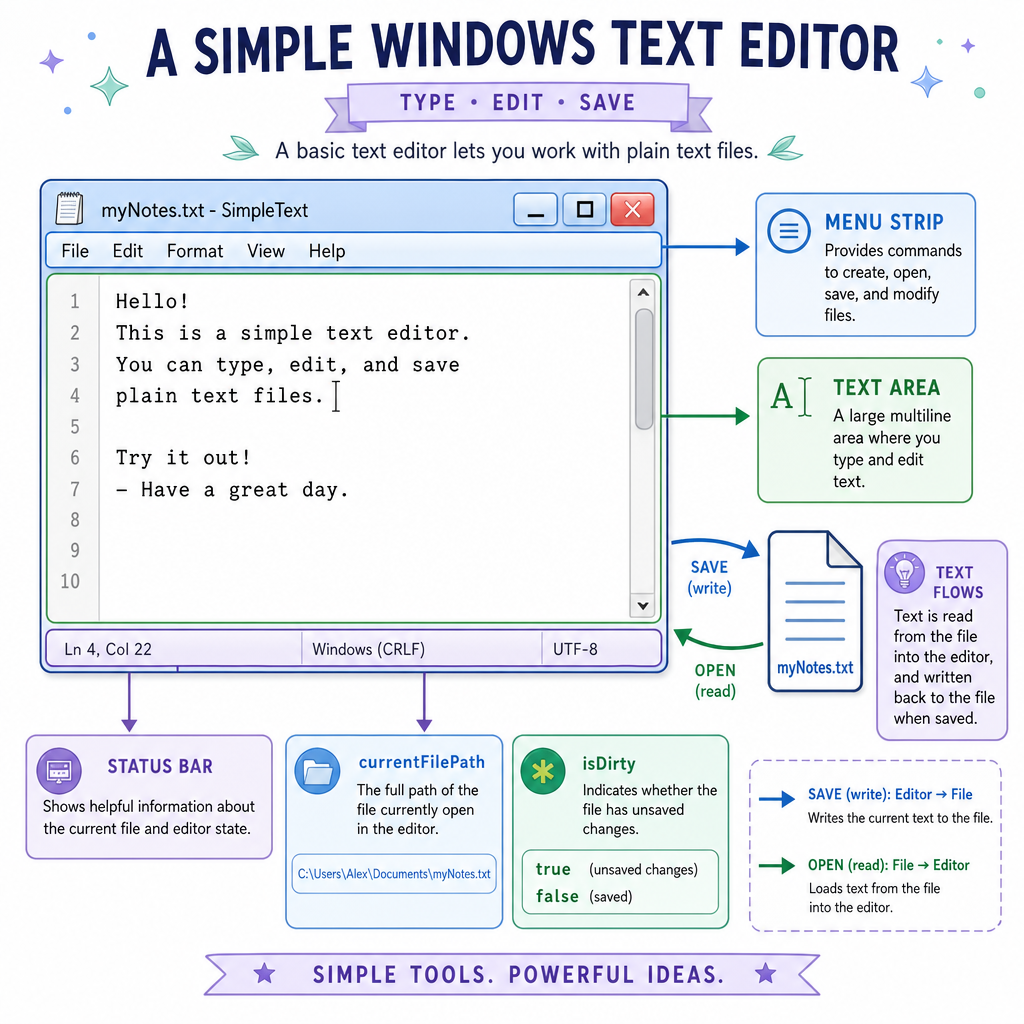
A basic Windows text editor has a simple structure:
Window/Form
├── Menu or buttons
│   ├── New
│   ├── Open
│   └── Save
├── Big text area
└── Status area
    ├── saved/unsaved
    └── word count
The key mental model is:
- the TextBox holds what the user sees and edits
- the app keeps small pieces of state like
isDirtyandcurrentFilePath - file commands move text between the TextBox and disk
We’re not inventing a full Microsoft Word clone. We’re building the clean, useful core.
Track Document State
The editor needs memory
In the calculator, the display text was temporary. In a text editor, the text is the main data.
A common pattern is to keep a small document model:
-
Text: the actual document content -
FilePath: where it is saved, if anywhere -
IsDirty: whether the text has changed since the last save
IsDirty is editor slang for “there are unsaved changes.” It’s like having a draft verse you changed but haven’t recorded yet.
```csharp
using System;

class TextDocument
{
    public string Text { get; private set; } = "";
    public string? FilePath { get; private set; }
    public bool IsDirty { get; private set; }

    public void ReplaceText(string newText)
    {
        Text = newText;
        IsDirty = true;
    }

    public void MarkSaved(string path)
    {
        FilePath = path;
        IsDirty = false;
    }

    public int WordCount()
    {
        return Text.Split(new[] { ' ', '\r', '\n', '\t' }, StringSplitOptions.RemoveEmptyEntries).Length;
    }
}

class Program
{
    static void Main()
    {
        var doc = new TextDocument();

        doc.ReplaceText("Reality TV recap\nThat reunion episode was intense");
        Console.WriteLine($"Words: {doc.WordCount()}");
        Console.WriteLine($"Unsaved changes? {doc.IsDirty}");

        doc.MarkSaved("recap.txt");
        Console.WriteLine($"Saved to: {doc.FilePath}");
        Console.WriteLine($"Unsaved changes? {doc.IsDirty}");
    }
}
```
Dirty Flag Check
In a text editor, what is the main purpose of an isDirty flag?
Saving And Loading
Files make the editor real
A text editor becomes useful when it can move text between memory and disk.
C# gives you simple helpers in System.IO:
-
File.WriteAllText(path, text)saves text into a file -
File.ReadAllText(path)loads text from a file -
Path.Combine(...)safely builds file paths
In a Windows app, these calls usually happen after the user clicks Save or chooses a file from an Open dialog.
```csharp
using System;
using System.IO;

class Program
{
    static void Main()
    {
        string folder = Path.Combine(Path.GetTempPath(), "TextEditorLesson");
        Directory.CreateDirectory(folder);

        string path = Path.Combine(folder, "workout-notes.txt");
        string draft = "Monday: legs\nTuesday: cardio\nFriday: full body";

        File.WriteAllText(path, draft);
        Console.WriteLine($"Saved file: {Path.GetFileName(path)}");

        string loaded = File.ReadAllText(path);
        Console.WriteLine("Loaded text:");
        Console.WriteLine(loaded);
    }
}
```
File Helper Swipe
Swipe right if true, left if false:
When you use File.WriteAllText(path, text), C# handles opening, writing, and closing the file for that one operation.
Wire The UI
Connect controls to behavior
You already practiced event-driven thinking in Building a Calculator. The text editor uses the same pattern:
- text changes → update word count and mark unsaved
- save button click → write file and mark saved
- open button click → read file and replace text
Here’s a tiny Windows Forms editor skeleton. In a real project, create a Windows Forms app and place this in Program.cs.
```csharp
using System;
using System.Diagnostics;
using System.IO;
using System.Windows.Forms;

class Program
{
    [STAThread]
    static void Main()
    {
        Console.WriteLine("Launching mini text editor...");

        Application.EnableVisualStyles();
        Application.SetCompatibleTextRenderingDefault(false);

        var form = new Form
        {
            Text = "Mini Text Editor",
            Width = 700,
            Height = 500
        };

        var saveButton = new Button
        {
            Text = "Quick Save",
            Dock = DockStyle.Top,
            Height = 36
        };

        var editor = new TextBox
        {
            Multiline = true,
            Dock = DockStyle.Fill,
            ScrollBars = ScrollBars.Vertical,
            AcceptsReturn = true,
            AcceptsTab = true
        };

        var status = new Label
        {
            Dock = DockStyle.Bottom,
            Height = 28,
            Text = "Words: 0 | Saved"
        };

        bool isDirty = false;
        string path = Path.Combine(Path.GetTempPath(), "mini-editor-note.txt");

        void UpdateStatus()
        {
            int words = editor.Text.Split(new[] { ' ', '\r', '\n', '\t' }, StringSplitOptions.RemoveEmptyEntries).Length;
            status.Text = $"Words: {words} | {(isDirty ? "Unsaved" : "Saved")}";
        }

        editor.TextChanged += (sender, args) =>
        {
            isDirty = true;
            UpdateStatus();
            Debug.WriteLine("Text changed");
        };

        saveButton.Click += (sender, args) =>
        {
            File.WriteAllText(path, editor.Text);
            isDirty = false;
            UpdateStatus();
            Console.WriteLine($"Saved to {path}");
        };

        form.Controls.Add(editor);
        form.Controls.Add(saveButton);
        form.Controls.Add(status);

        Application.Run(form);
    }
}
```
Event Name Recall
Fill in the blank:
A Windows Forms TextBox raises the _____ event when its text content changes.
Protect Unsaved Work
Don’t lose the draft
A text editor should be polite. If the user has unsaved work, don’t silently throw it away.
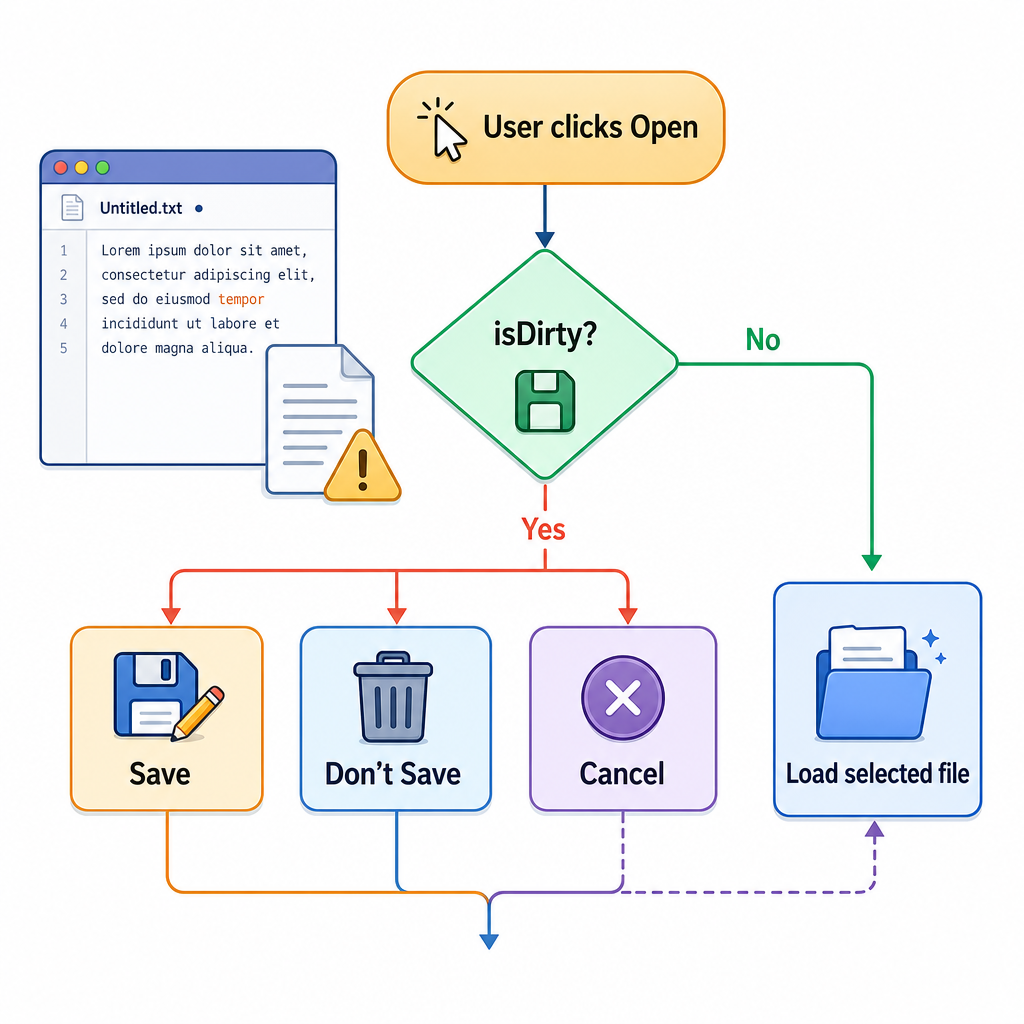
Before actions like New, Open, or Close, check:
if isDirty:
    ask user: Save, Don't Save, or Cancel
This is one of the biggest differences between a toy demo and an app that feels trustworthy.
Useful rules:
-
Newshould clear the text only after handling unsaved changes -
Openshould not replace the current text until it is safe -
Saveshould updatecurrentFilePathand setisDirty = false - errors should be shown clearly instead of crashing the app
Editor Build Checklist
What you now know how to build
You’ve moved from calculator-style button logic to a more realistic document app.
Your text editor checklist:
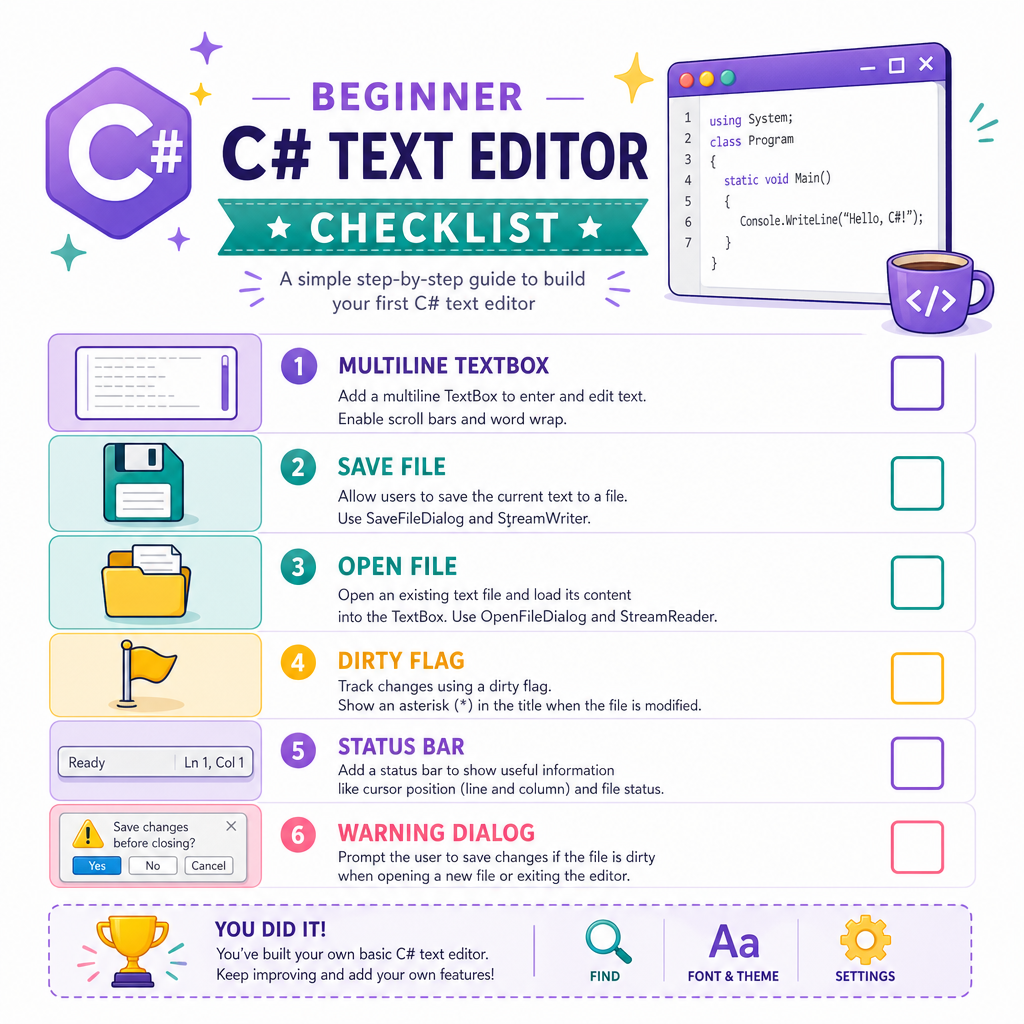
- create a form with a large multiline text area
- track document state with
Text,FilePath, andIsDirty - respond to
TextChangedand button/menu events - save with
File.WriteAllText - load with
File.ReadAllText - warn users before discarding unsaved work
That’s a serious step forward. Next, we’ll use the same event-driven mindset in a more interactive direction: a simple game.