CSS Flexbox
Read at your own pace. Code execution, quizzes, progress tracking, and the AI tutor are available in the interactive view with JavaScript enabled.
Why Flexbox Now
From styled boxes to intentional layout
In CSS Fundamentals, you built the core model: selectors, cascade, box model, units, naming, and debugging. Flexbox is where those pieces start behaving like a layout system instead of isolated style rules.
Flexbox matters because many interface problems are one-dimensional:
- A nav bar spreading links across a row
- A media object with an avatar beside text
- A card footer where one button hugs the end
- A row of reality-show contestant cards that should align even when names are chaotic
At staff level, the value is not memorizing every property. It is being able to look at a layout bug and ask: Which element owns the layout contract: the parent or the child?
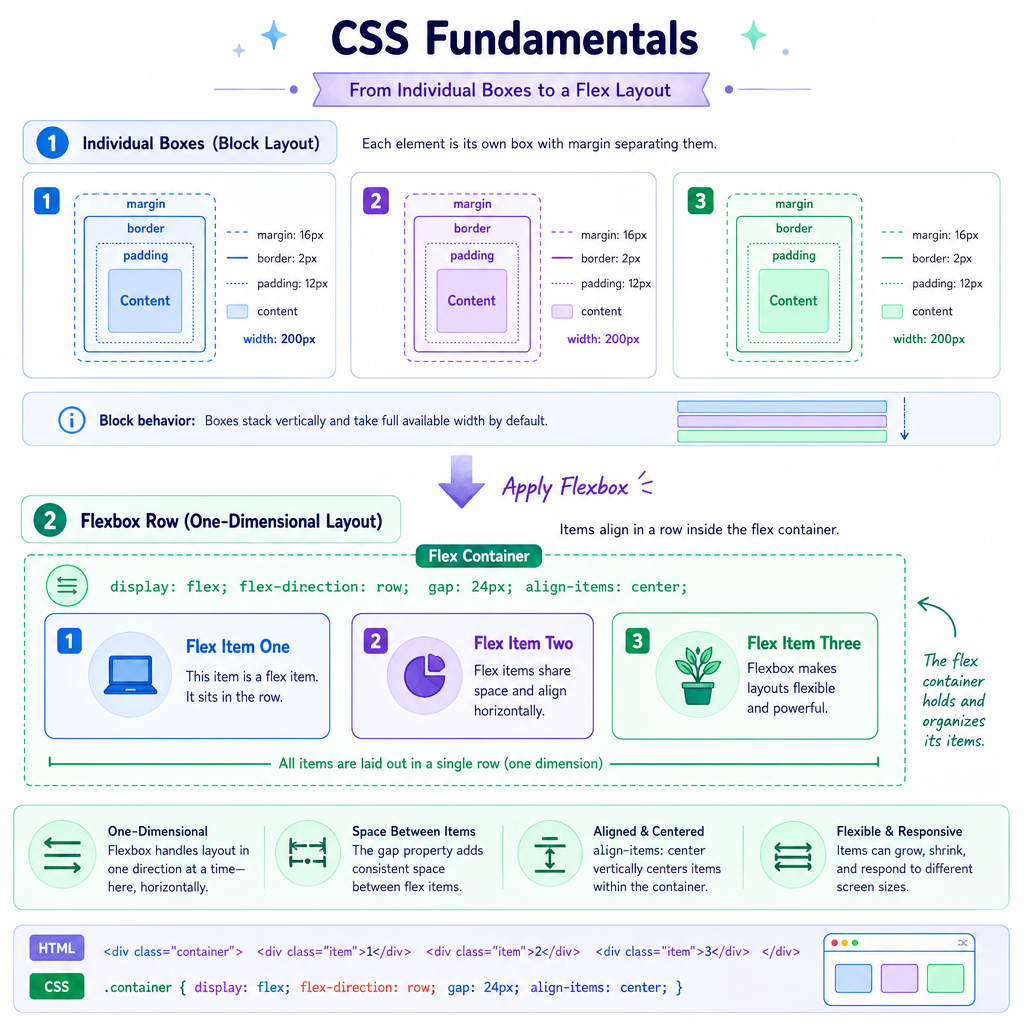
In Flexbox, the parent becomes the flex container, and its direct children become flex items.
One Dimensional Contract
Flexbox solves one axis at a time
Flexbox is best understood as a contract between a container and its direct children.
.deck {
  display: flex;
}
That single declaration changes how .deck lays out its children.
.flex-container
┌─────────────────────────────┐
│ [item]   [item]   [item]    │
└─────────────────────────────┘
The most important mental model:
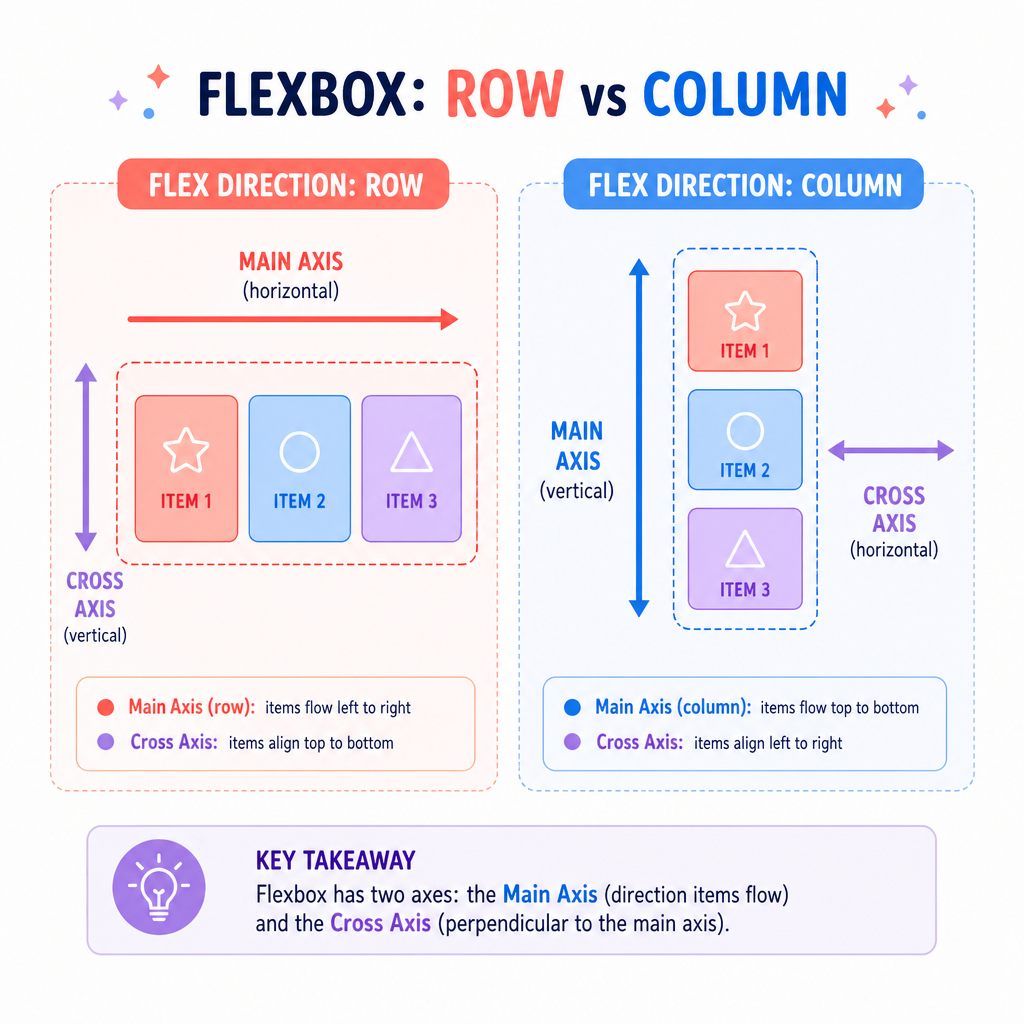
- Main axis: the direction items primarily flow
- Cross axis: the perpendicular direction
By default, flex-direction: row, so the main axis runs left-to-right in typical English-language layouts.
When you switch to flex-direction: column, you are not merely stacking things. You are redefining which axis properties like justify-content and align-items apply to.
Axes Drive Meaning
justify-content and align-items are axis-relative
A common Flexbox bug comes from treating properties as if they always mean “horizontal” or “vertical.” They do not.
-
justify-contentdistributes space along the main axis -
align-itemsaligns items along the cross axis
So this:
.toolbar {
  display: flex;
  flex-direction: row;
  justify-content: space-between;
  align-items: center;
}
means: spread items across the row, then center them vertically.
But if you change to:
.toolbar {
  flex-direction: column;
}
then justify-content now works vertically, and align-items works horizontally.
That axis switch is the “plot twist” in many Flexbox debugging sessions.
```javascript
const flexDirections = {
  row: {
    mainAxis: "horizontal",
    crossAxis: "vertical",
    justifyContentAffects: "left/right distribution",
    alignItemsAffects: "up/down alignment"
  },
  column: {
    mainAxis: "vertical",
    crossAxis: "horizontal",
    justifyContentAffects: "up/down distribution",
    alignItemsAffects: "left/right alignment"
  }
};

for (const [direction, meaning] of Object.entries(flexDirections)) {
  console.log(`flex-direction: ${direction}`);
  console.log(`  main axis: ${meaning.mainAxis}`);
  console.log(`  cross axis: ${meaning.crossAxis}`);
  console.log(`  justify-content: ${meaning.justifyContentAffects}`);
  console.log(`  align-items: ${meaning.alignItemsAffects}`);
}
```
Axis Check
A container has this CSS:
.cast-list {
  display: flex;
  flex-direction: column;
  justify-content: center;
}
Which direction does justify-content affect?
Alignment And Space
Alignment is about leftover space
Flexbox shines when content sizes are uneven. Think of a row of game inventory items: some labels are short, some wrap, and one action button should stay visually aligned.
Important container properties:
-
justify-content: distributes leftover space on the main axis -
align-items: aligns all items on the cross axis -
align-self: lets one item opt out ofalign-items -
gap: creates spacing between flex items without margin hacks
Example:
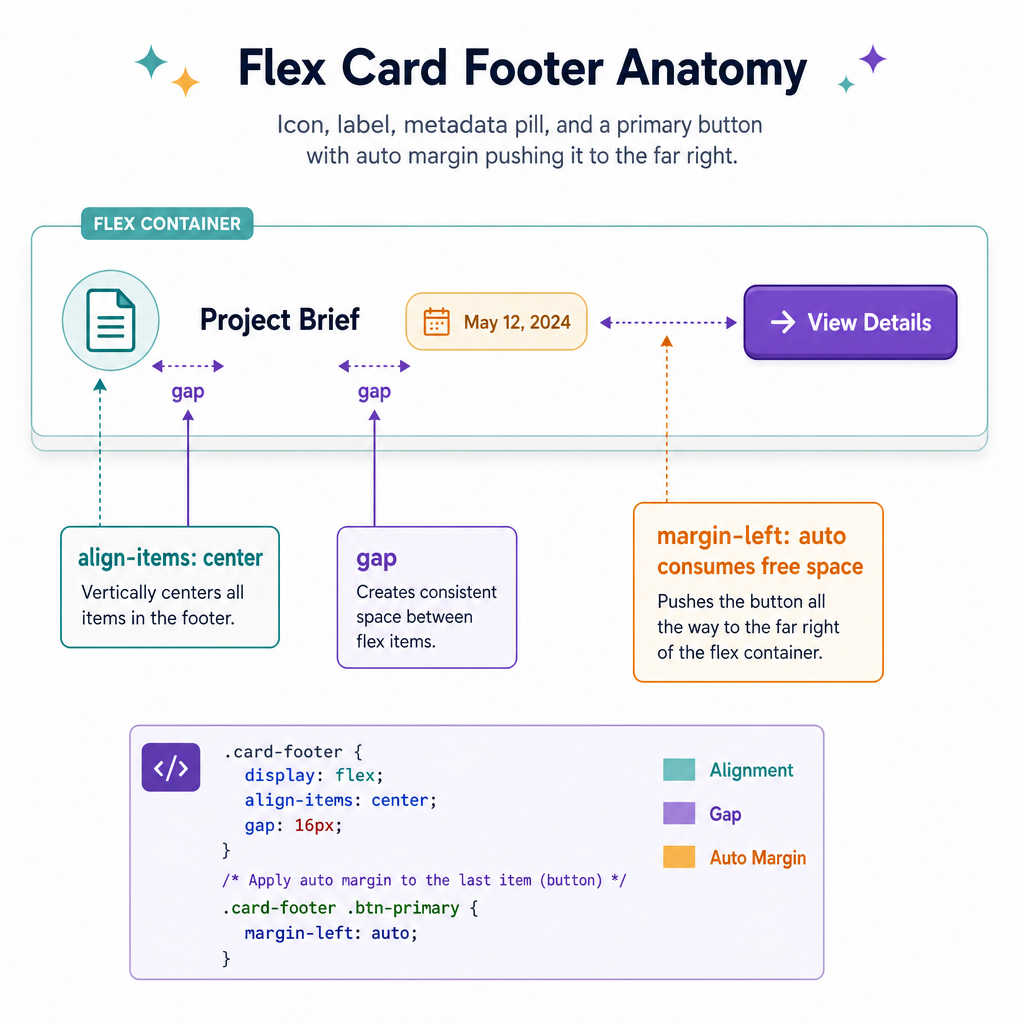
.card-footer {
  display: flex;
  align-items: center;
  gap: 0.75rem;
}

.card-footer .primary-action {
  margin-left: auto;
}
margin-left: auto consumes available inline space before the button, pushing it to the end. This is one of those small Flexbox moves that shows up constantly in production UI work.
Prefer gap for spacing between siblings. It expresses layout intent more directly than sprinkling margins onto every child.
Flexible Item Sizing
flex controls how items negotiate space
Container properties decide the overall layout. Item properties decide how each child participates.
The key shorthand is:
.item {
  flex: <grow> <shrink> <basis>;
}
For example:
.sidebar { flex: 0 0 240px; }
.content { flex: 1 1 auto; }
Read that as:
- Sidebar: do not grow, do not shrink, start at
240px - Content: grow to consume leftover space, shrink if needed, start from its natural size
The browser's real algorithm has nuance, but the staff-level intuition is this:
- Start with each item's basis
- Compare total basis to container size
- If there is extra space, distribute by
flex-grow - If there is not enough space, reduce by
flex-shrink
This is layout as negotiation, not absolute positioning.
```javascript
function distributeGrowSpace(containerWidth, items) {
  const totalBasis = items.reduce((sum, item) => sum + item.basis, 0);
  const freeSpace = containerWidth - totalBasis;
  const totalGrow = items.reduce((sum, item) => sum + item.grow, 0);

  console.log(`Container: ${containerWidth}px`);
  console.log(`Total basis: ${totalBasis}px`);
  console.log(`Free space: ${freeSpace}px`);

  return items.map((item) => {
    const extra = totalGrow > 0 ? (freeSpace * item.grow) / totalGrow : 0;
    return {
      name: item.name,
      finalWidth: item.basis + extra
    };
  });
}

const layout = distributeGrowSpace(900, [
  { name: "sidebar", basis: 240, grow: 0 },
  { name: "main", basis: 300, grow: 1 },
  { name: "details", basis: 180, grow: 1 }
]);

console.log(layout);
```
Container Declaration
Fill in the missing CSS declaration.
.toolbar {
  ________;
  align-items: center;
  gap: 1rem;
}
What declaration turns .toolbar into a flex container?
Wrap And Order
Flexbox can wrap, but source order still matters
By default, flex items try to stay on one line:
.shelf {
  display: flex;
  flex-wrap: nowrap;
}
You can allow wrapping:
.shelf {
  display: flex;
  flex-wrap: wrap;
  gap: 1rem;
}
This is useful for rows of chips, tags, small cards, or action buttons where a single line may not have enough room.
Flexbox also has order, which visually rearranges items:
.featured {
  order: -1;
}
Use it carefully. Visual order and DOM order can diverge, which affects keyboard navigation, screen readers, and maintainability. From DOM Manipulation, you already know the document tree is not just an implementation detail; it is the structure assistive tech and event flow often depend on.
If the intended reading or interaction order changes, prefer changing the actual markup order rather than relying on visual reordering.
```javascript
function describeFlexList({ wrap, featuredFirst }) {
  const css = [
    ".shelf {",
    "  display: flex;",
    `  flex-wrap: ${wrap ? "wrap" : "nowrap"};`,
    "  gap: 1rem;",
    "}",
    featuredFirst ? ".featured { order: -1; }" : "/* DOM order and visual order match. */"
  ].join("\n");

  console.log(css);
}

describeFlexList({ wrap: true, featuredFirst: false });
describeFlexList({ wrap: true, featuredFirst: true });
```
Order Reality
True or false: using the Flexbox order property changes the actual DOM order of elements.
Debug Flex Layouts
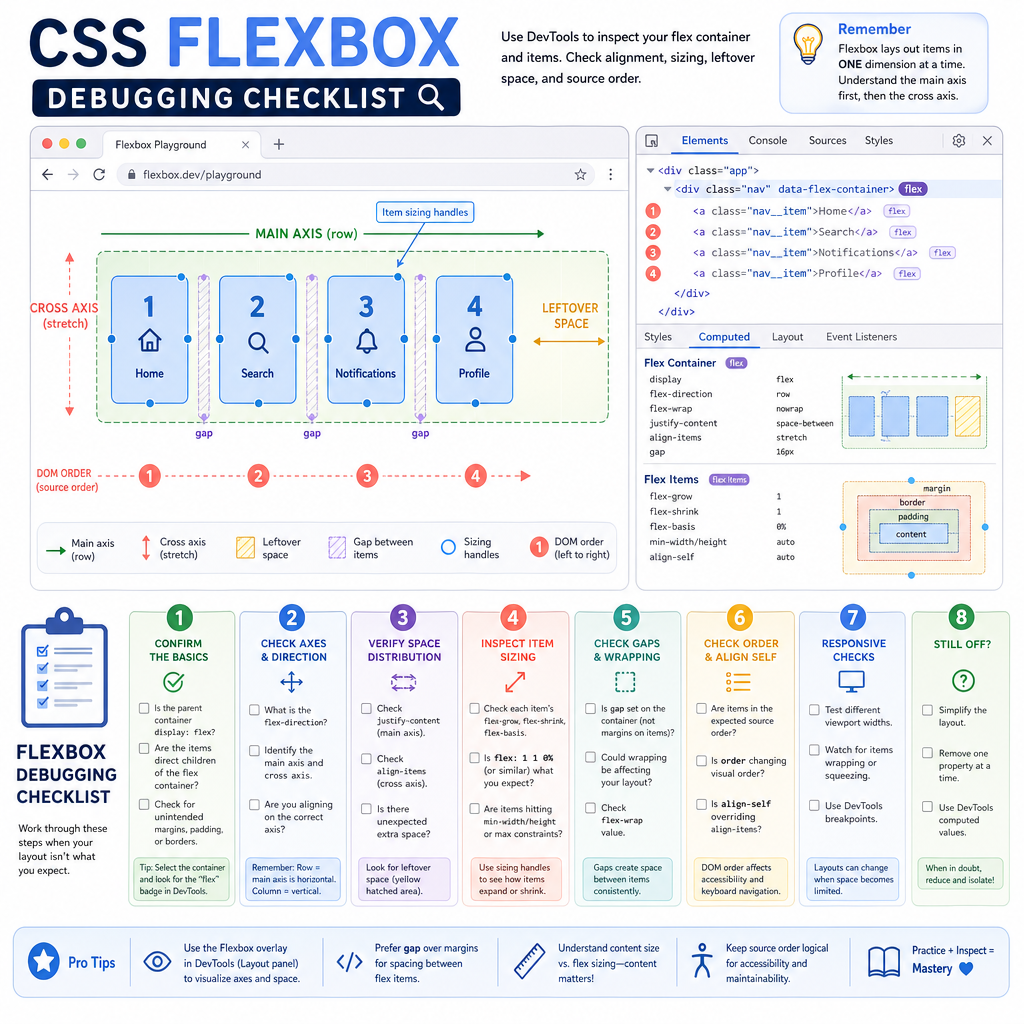
A practical Flexbox debugging loop
When a Flexbox layout behaves oddly, do not randomly toggle properties. Use the same detective mindset from CSS Fundamentals.
Ask these questions in order:
Is the right parent the flex container?
display: flexaffects direct children only.What is the main axis?
Checkflex-directionbefore interpretingjustify-content.Where is the leftover space?
Alignment properties only matter when there is space to distribute.Are item sizes fighting the container?
Inspectflex,min-width,max-width, and content that refuses to shrink.Is spacing intentional?
Prefergapfor sibling spacing. Watch for legacy margins still applying.Did visual order diverge from source order?
Be cautious withorderwhen interaction or accessibility matters.
Flexbox is the right tool when you are arranging items along one primary axis. Next, CSS Grid will give you a different mental model for two-dimensional layout.