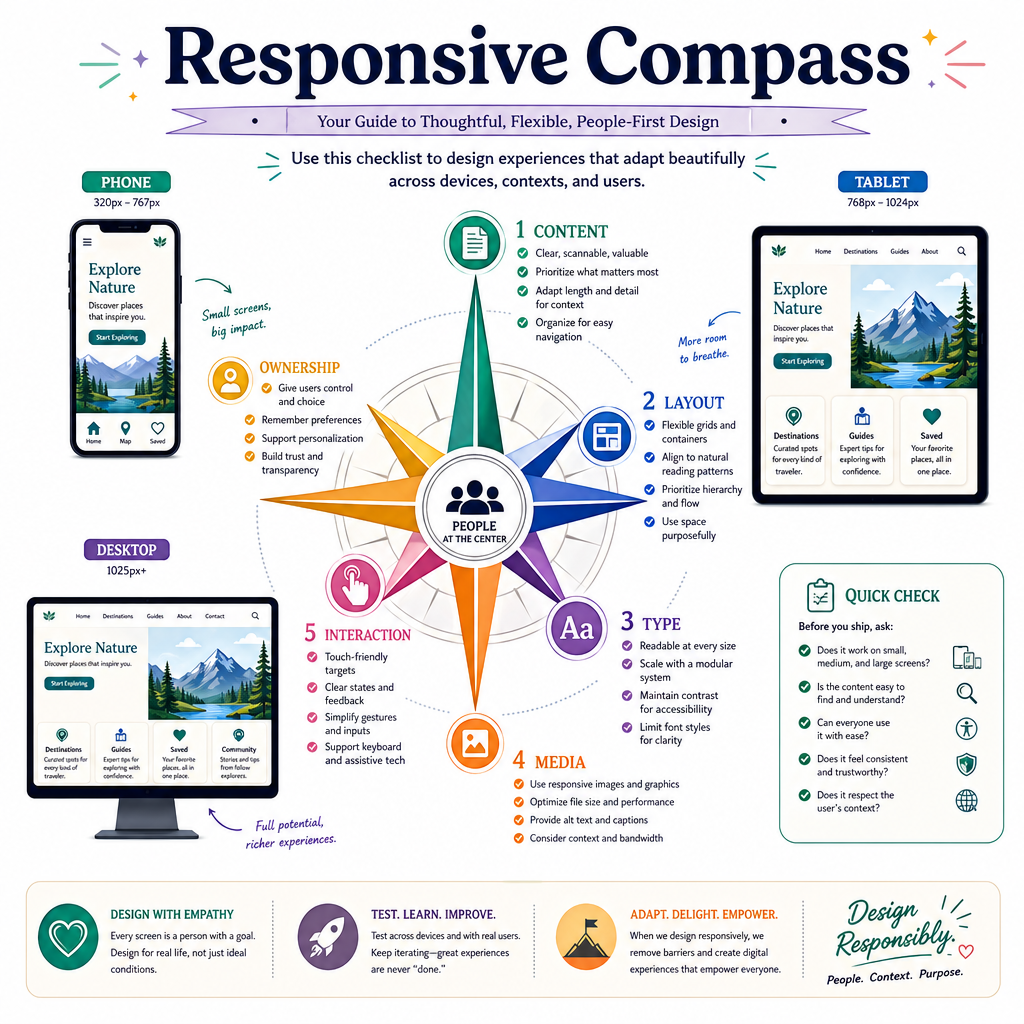
Responsive Web Design
Read at your own pace. Code execution, quizzes, progress tracking, and the AI tutor are available in the interactive view with JavaScript enabled.
Why Responsive Now
From components to real screens
Now that we've covered Introduction to JavaScript, Asynchronous JavaScript, and React Basics, you can describe behavior, time, and UI composition. Responsive Web Design is the next layer: making that UI work across the messy reality of phones, tablets, laptops, ultrawide monitors, zoom settings, and embedded webviews.
For a staff frontend interview, responsive design is not just "make it look good on mobile." It is about systems thinking:
- How does layout adapt when space changes?
- Which constraints belong in CSS versus JavaScript?
- What happens to images, typography, navigation, and interaction density?
- Can your team ship reusable patterns instead of one-off fixes?
Think of it like designing a game HUD: the same information must stay readable whether the player is on a handheld screen or a giant monitor.
Viewport Mental Model
The viewport is your available stage
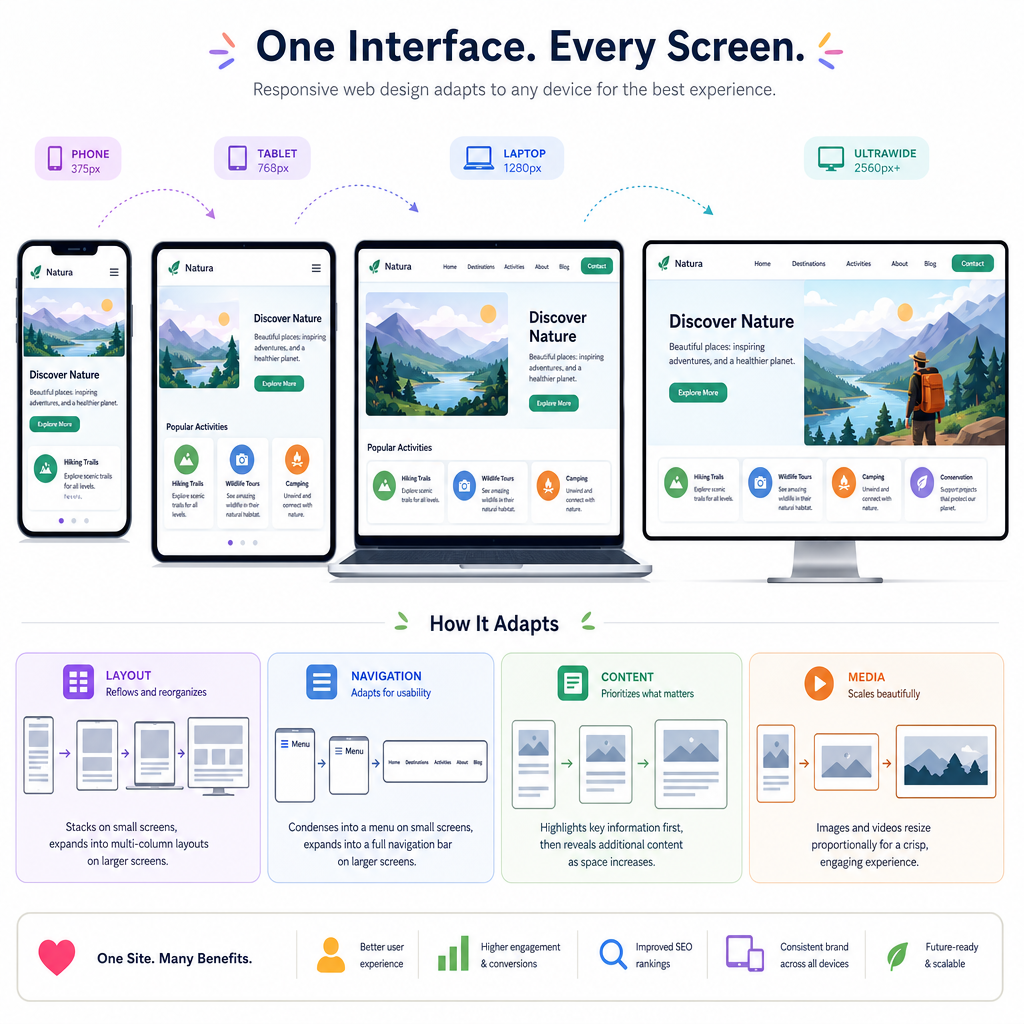
Responsive design starts with the viewport: the visible area where the page is rendered. Your layout is not responding to "iPhone" or "desktop" as identities. It is responding to available space and user settings.
A useful mental model:
Content need + Available space + CSS rules => Rendered layout
Common viewport-related realities:
- A 390px-wide phone can be zoomed or rotated.
- A desktop browser can be narrowed to a skinny side-by-side window.
- Users can increase font size.
- Device pixels and CSS pixels are not always the same thing.
So instead of asking, "What device is this?" ask, "What can this layout support at this width?"
Breakpoint Strategy
Breakpoints are design decisions
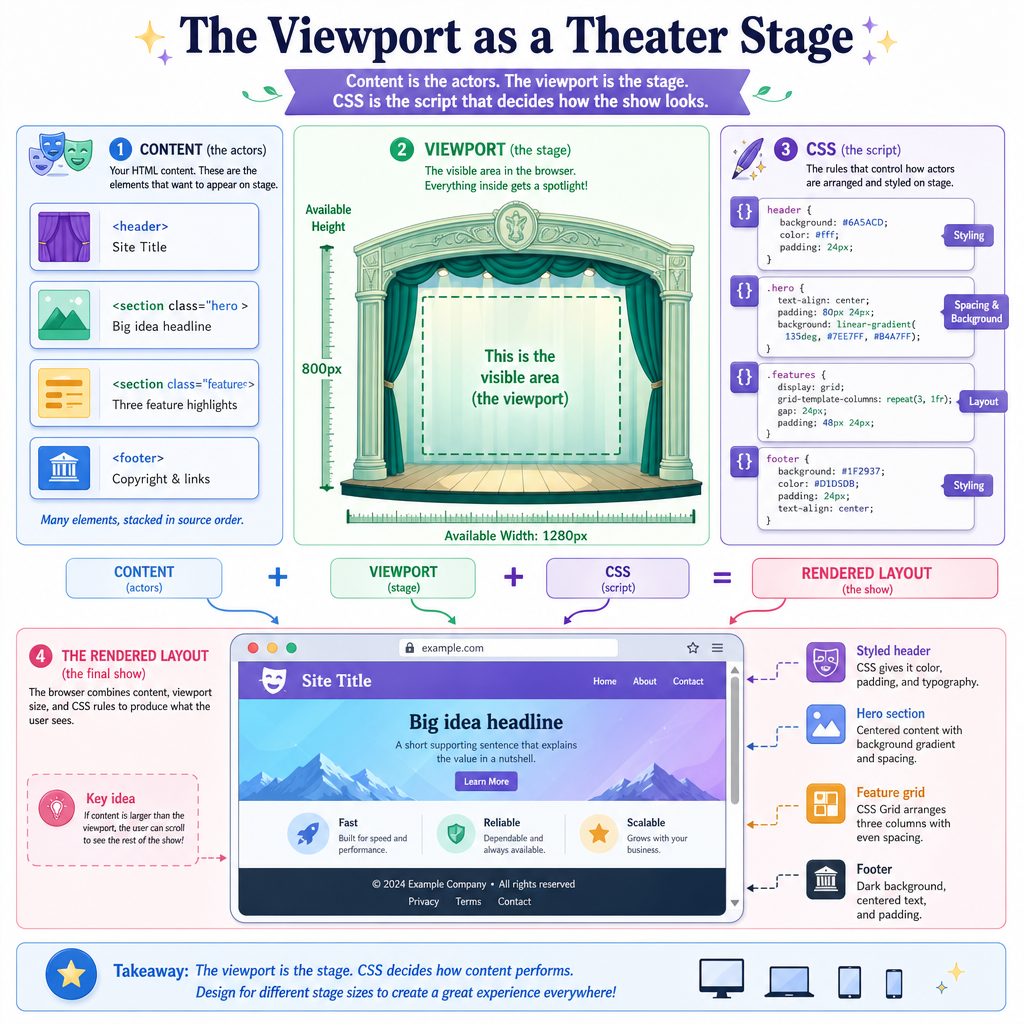
A breakpoint is a width where the layout needs to change because the current arrangement stops working well.
A beginner mistake is choosing breakpoints from popular device sizes. A stronger approach is content-first:
- Start with the narrowest useful layout.
- Expand the viewport.
- Add a breakpoint when the content feels cramped, stretched, or awkward.
- Prefer fewer breakpoints with clearer intent.
Mobile-first CSS usually starts with base styles for small screens, then adds rules like @media (min-width: 768px) as more room becomes available.
Here is a tiny JavaScript model of that decision process. In a real app, CSS should handle most layout changes, but this helps make the thresholds explicit.
```js
const breakpoints = [
  { minWidth: 0, name: "single-column", reason: "reading-first mobile layout" },
  { minWidth: 640, name: "compact two-column", reason: "cards can sit beside each other" },
  { minWidth: 1024, name: "dashboard", reason: "navigation and content can share space" }
];

function layoutForWidth(width) {
  return breakpoints
    .filter((breakpoint) => width >= breakpoint.minWidth)
    .at(-1);
}

[375, 700, 1280].forEach((width) => {
  const layout = layoutForWidth(width);
  console.log(`${width}px -> ${layout.name}: ${layout.reason}`);
});
```
Breakpoint Check
A team is choosing responsive breakpoints for a card grid. Which approach is strongest?
Fluid Sizing
Prefer ranges over cliffs
Responsive design feels best when values change smoothly. Hard jumps can make the interface feel brittle.
Useful CSS ideas:
- Percentages let containers share available space.
-
remscales with root font size. -
vwandvhrelate to viewport dimensions. -
min(),max(), andclamp()define flexible boundaries.
For example, clamp(1rem, 2vw, 1.5rem) means:
Never smaller than 1rem
Prefer 2vw when it fits
Never larger than 1.5rem
Here is the same idea modeled in JavaScript.
```js
function clamp(min, preferred, max) {
  return Math.min(Math.max(preferred, min), max);
}

function fluidFontSize(viewportWidth) {
  const rem = 16;
  const min = 1 * rem;
  const preferred = 0.02 * viewportWidth;
  const max = 1.5 * rem;
  return clamp(min, preferred, max);
}

[320, 768, 1440].forEach((width) => {
  console.log(`${width}px viewport -> ${fluidFontSize(width)}px font size`);
});
```
Device Names Trap
True or false: A responsive site should primarily detect device names like "iPhone" or "Android" to decide its layout.
Layout Patterns
Reliable responsive patterns
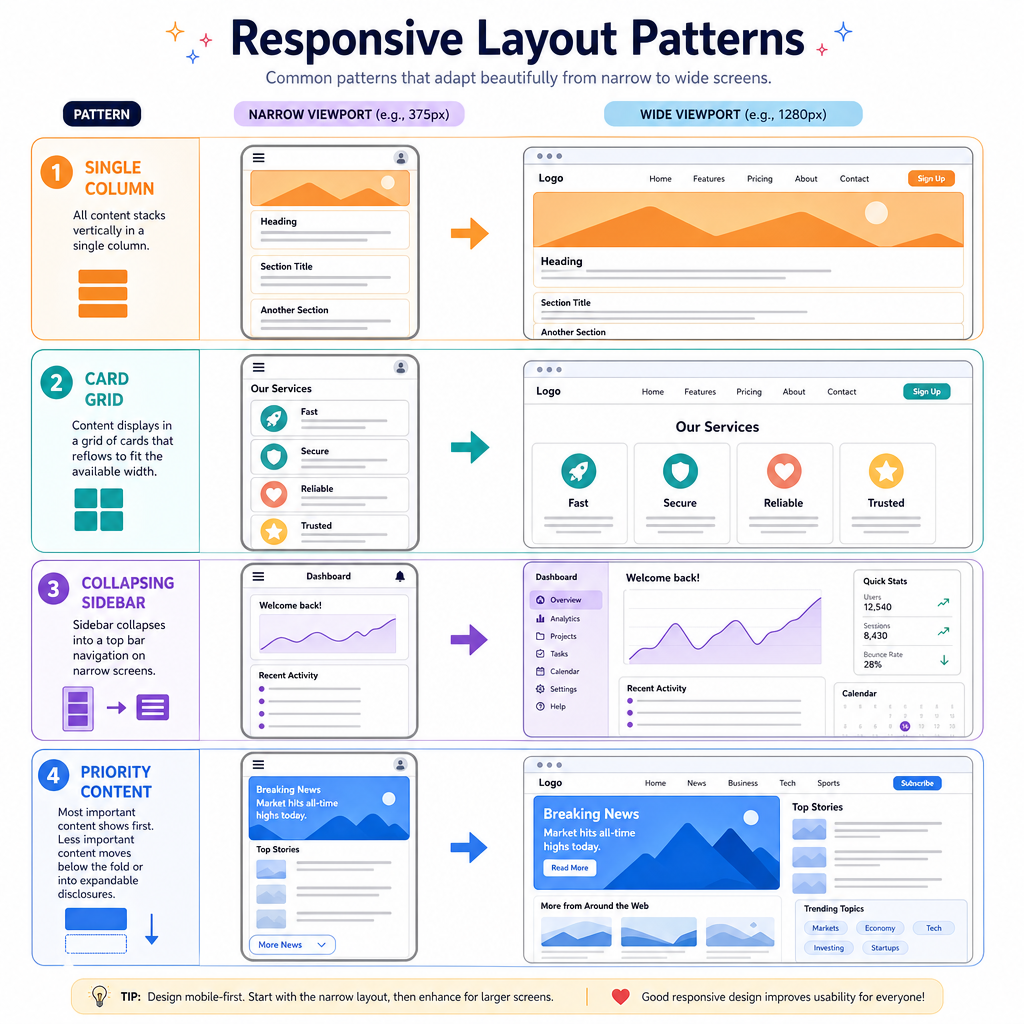
Great responsive systems reuse a small set of layout patterns instead of improvising on every page.
Common patterns:
- Single column to multi-column: articles, settings pages, checkout flows.
- Card grid: product listings, dashboards, media libraries.
- Sidebar collapse: documentation, admin tools, reading apps.
- Priority content: show the most important controls first when space is tight.
At a staff level, your job is often to turn these into shared primitives: Stack, Cluster, Grid, Sidebar, or similar layout components. The names vary by codebase, but the goal is the same: make the easiest path also the consistent path.
React from the previous lesson gives you component boundaries. Responsive CSS gives those components spatial intelligence.
Responsive Media
Images need responsive rules too
Text and layout are only part of the story. Images can make or break performance and visual quality.
Responsive image goals:
- Avoid sending a huge desktop image to a small phone.
- Avoid blurry images on dense displays.
- Preserve important subject matter when cropping.
- Keep layout stable while media loads.
HTML gives tools like srcset, sizes, and picture. You do not need JavaScript to choose most responsive images, but modeling the choice helps clarify what the browser is doing: it tries to pick an appropriate resource for the rendered size and display density.
```js
const candidates = [
  { file: "poster-480.jpg", width: 480 },
  { file: "poster-960.jpg", width: 960 },
  { file: "poster-1440.jpg", width: 1440 }
];

function chooseImage(renderedWidth, devicePixelRatio) {
  const neededWidth = renderedWidth * devicePixelRatio;
  return candidates.find((image) => image.width >= neededWidth) ?? candidates.at(-1);
}

[
  { renderedWidth: 320, dpr: 1 },
  { renderedWidth: 320, dpr: 2 },
  { renderedWidth: 700, dpr: 2 }
].forEach(({ renderedWidth, dpr }) => {
  const image = chooseImage(renderedWidth, dpr);
  console.log(`${renderedWidth}px @${dpr}x -> ${image.file}`);
});
```
Media Query Blank
Fill in the blank.
In a mobile-first media query like @media (min-____: 768px), the missing word is:
Responsive Compass
Your responsive checklist
When reviewing a responsive interface, use this quick compass:
- Content: Does the most important information remain visible and readable?
- Layout: Does the structure adapt before it breaks?
- Type: Are font sizes and line lengths comfortable?
- Media: Are images appropriately sized and not causing layout jumps?
- Interaction: Are touch targets usable and dense desktop controls not overwhelming mobile users?
- Ownership: Are these rules reusable, or is every screen a custom exception?
This lesson sits between React and the next visual layer. You now have the mental model to make components adapt across space; later, CSS Animation will focus on how UI changes over time without sacrificing clarity.