Setting up the Development Environment
Read at your own pace. Code execution, quizzes, progress tracking, and the AI tutor are available in the interactive view with JavaScript enabled.
From Idea To App
Why this lesson matters
In Introduction to Programming, you learned that a program is a set of ordered instructions and that C++ is a powerful language for turning ideas into real software.
Now we need a workbench.
Just like home renovation needs tools before you can install shelves, C++ needs a few tools before you can build and run programs:
- a place to write code
- a tool that understands C++
- a way to run the finished program
By the end of this lesson, you'll know what each piece does and how to run your first C++ file on your machine or in an online editor.

The Toolchain
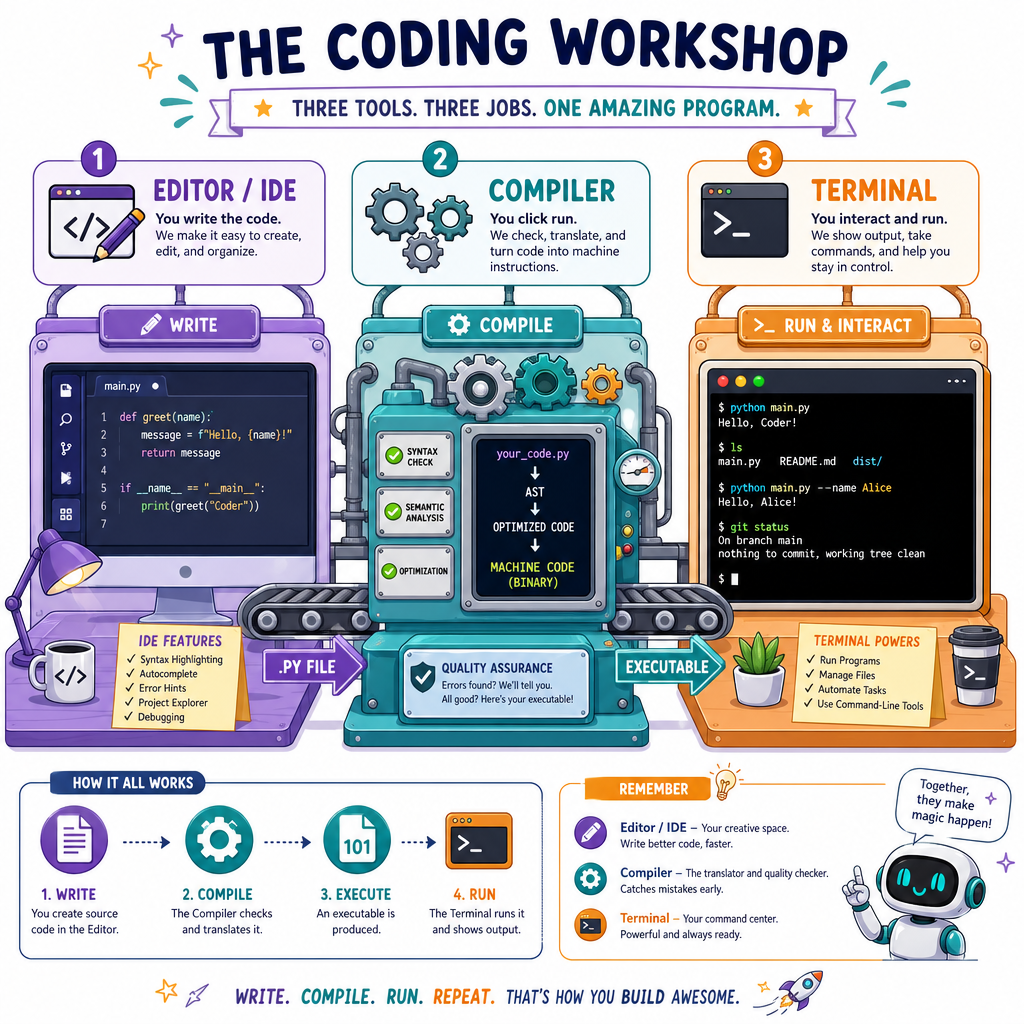
The three main pieces
A C++ development environment usually has three parts:
- Editor or IDE — where you type code
- Compiler — converts C++ source code into a runnable program
- Terminal or run button — starts the program and shows output
Think of it like music production:
- the editor is where you write the sheet music
- the compiler is like the performer translating notes into sound
- the terminal is where you hear the result
Common choices
- Beginner-friendly local setup: Visual Studio Code + C++ compiler
- Windows all-in-one: Visual Studio Community
- Mac: Xcode Command Line Tools or VS Code + clang++
- Linux: VS Code + g++
- Fastest start: online C++ editor such as Compiler Explorer, Replit, or OnlineGDB
Choose Your Setup
Two good paths
You can learn C++ with either an online environment or a local environment.
Option A: Online editor
Best if you want to start immediately.
Pros:
- no installation
- works on most computers
- easy to reset if something breaks
Cons:
- less like professional development
- may require internet
- limited control over files and tools
Option B: Local setup
Best if you want the full real-world workflow.
Pros:
- works offline
- closer to professional programming
- better for larger projects later
Cons:
- installation can take a few steps
- setup differs by operating system
For this course, either path works. If installation gets frustrating, use an online editor today and come back to local setup later. The goal is momentum.
Compiler Role
Which tool is responsible for translating C++ source code into a runnable program?
First C++ File
Create a tiny project
Make a new folder somewhere easy to find, such as cpp-practice.
Inside it, create a file named:
main.cpp
The .cpp ending tells your tools, 'This is a C++ source file.'
Paste this program into the file. Don't worry about understanding every symbol yet. Right now, the mission is to prove your environment can build and run C++.
```cpp
#include <iostream>

int main() {
    std::cout << "Hello from my C++ setup!" << std::endl;
    return 0;
}
```
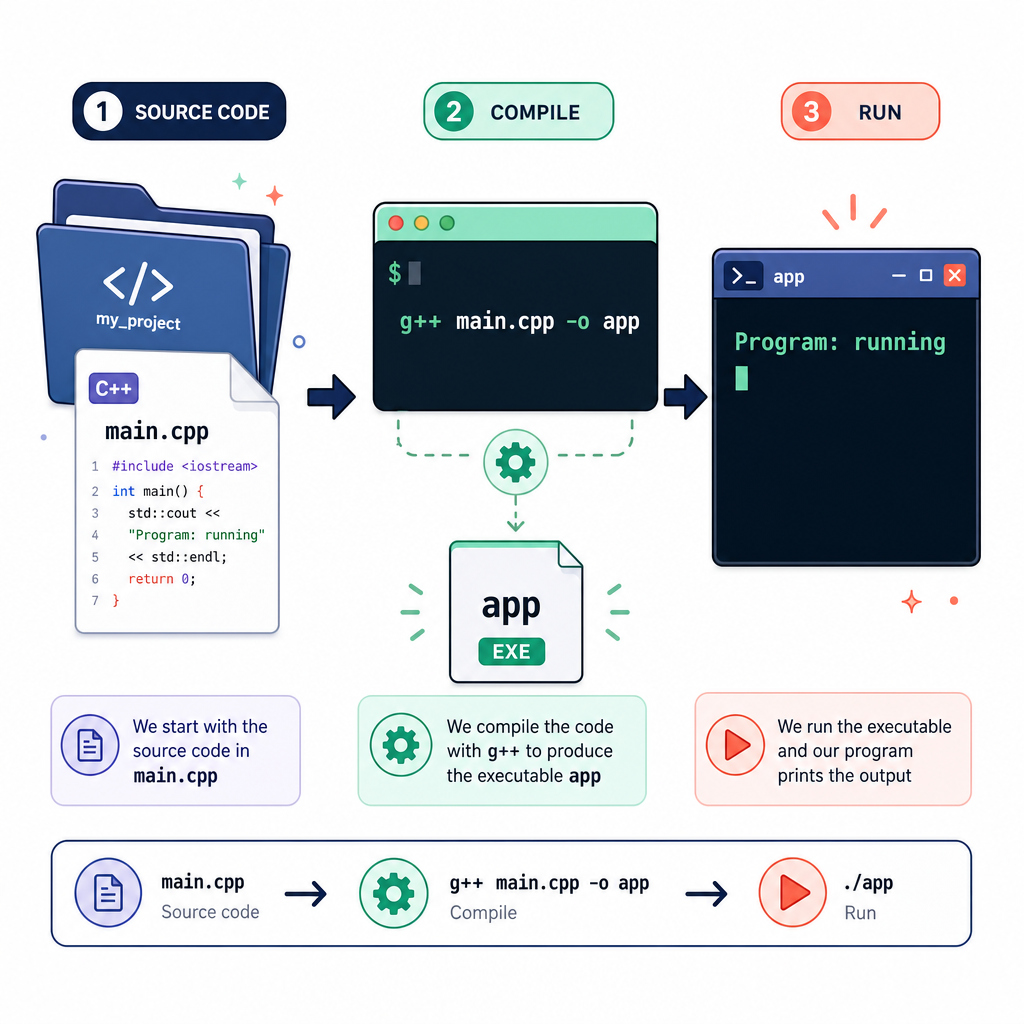
Source To Program
A C++ source file is usually compiled before it becomes a program you can run.
Compile And Run
Running from a terminal
If you are using a terminal, open it in the folder containing main.cpp.
A common compile command is:
g++ main.cpp -o app
That means: compile main.cpp and create a runnable program named app.
Then run it:
- Mac/Linux:
./app - Windows PowerShell:
./app.exeor./app
If you're using an IDE or online editor, you may just click Run. The IDE is doing similar steps behind the scenes.
Try this second small program once your first one works:
```cpp
#include <iostream>

int main() {
    std::cout << "C++ environment check:" << std::endl;
    std::cout << "Editor: ready" << std::endl;
    std::cout << "Compiler: ready" << std::endl;
    std::cout << "Program: running" << std::endl;
    return 0;
}
```
Command Blank
Fill in the missing command name:
_____ main.cpp -o app
This command uses a common C++ compiler to build main.cpp into a program named app.
Setup Troubleshooting
When things don't work yet
Setup issues are normal. They do not mean you're bad at programming.
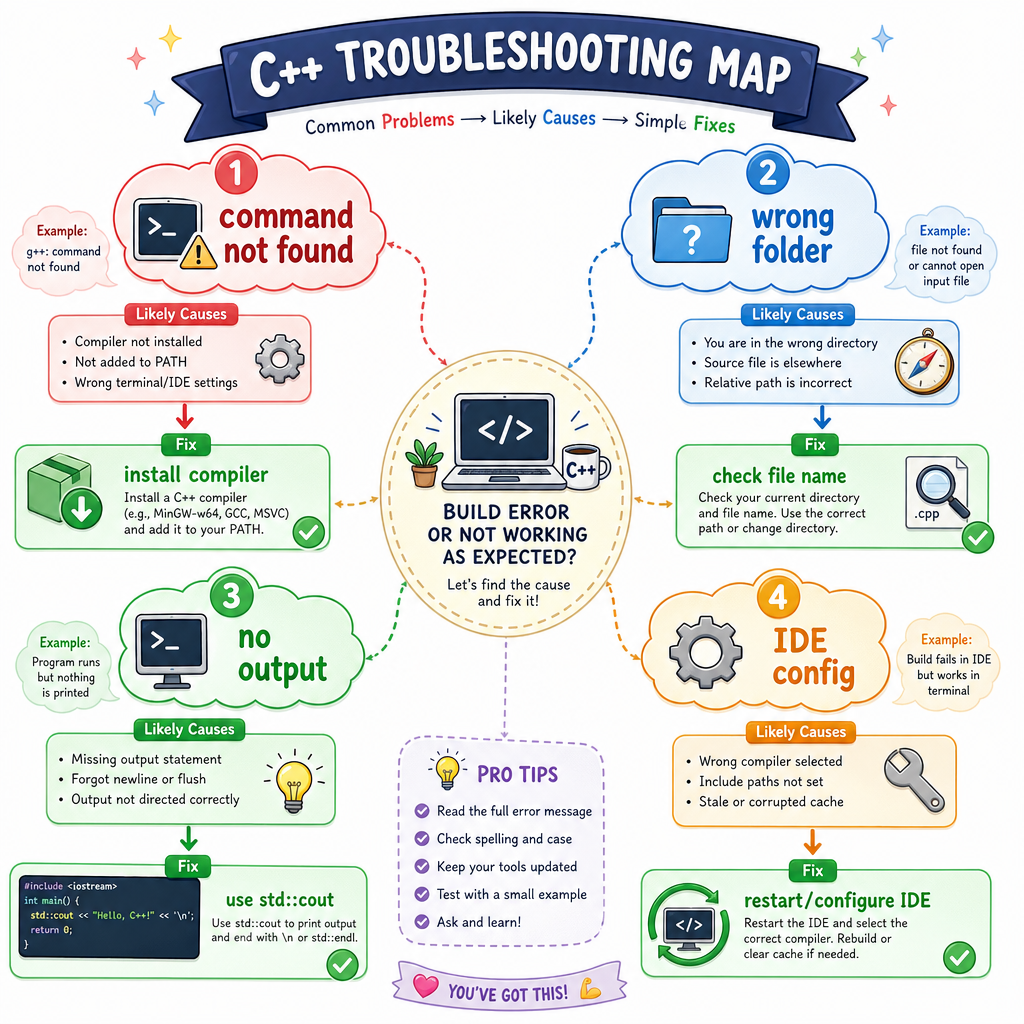
Here are common problems and what they usually mean:
command not found: g++
Your compiler is not installed, or your terminal cannot find it.
No such file or directory
Your terminal is probably in the wrong folder, or the file name is different.
The program runs but prints nothing
Check that your code contains an output line using std::cout.
The IDE shows red marks everywhere
The IDE may not know where your compiler is. Try restarting the IDE, checking the C++ extension, or using an online editor temporarily.
Debugging setup is like fixing a squeaky cabinet door during a home renovation: annoying, but part of preparing the workspace.
Ready Check
You type g++ main.cpp -o app, but the terminal says it cannot find main.cpp. What is the most likely first thing to check?
Before We Move On
Your environment is your launchpad
You now know the basic C++ development flow:
write code → compile code → run program → read output
That loop is the heartbeat of programming. You'll use it again and again throughout this course.
Try this final quick test. It connects to your interests without adding any new C++ concepts yet: just output text and confirm your setup works.
In the next lesson, Variables and Data Types, we'll start storing information inside programs instead of only printing fixed messages.
```cpp
#include <iostream>

int main() {
    std::cout << "Setup complete!" << std::endl;
    std::cout << "Ready to build: electronics tools, basketball trackers, renovation lists, and music apps." << std::endl;
    return 0;
}
```