Command Line Basics
Read at your own pace. Code execution, quizzes, progress tracking, and the AI tutor are available in the interactive view with JavaScript enabled.
Why CLI Now
Your frontend work has a backstage
You’ve already built up the core browser-side stack: JavaScript values, DOM updates, fetching data, ES6 structure, responsive layout, and Git snapshots.
The command line is how you operate the project around the browser:
- move through folders without a file explorer
- run local tools like formatters, test runners, and build scripts
- inspect project state before committing with Git
- pass small inputs into scripts
- understand errors from tools instead of treating them like mysterious reality-tv confessionals
For a staff frontend path, this matters because many “frontend” problems are really workflow, tooling, and environment problems wearing a UI costume.
We’ll stay scoped to local command-line basics. Next lesson, Hosting and Deployment, will use these skills when your app leaves your machine.

Terminal Mental Model
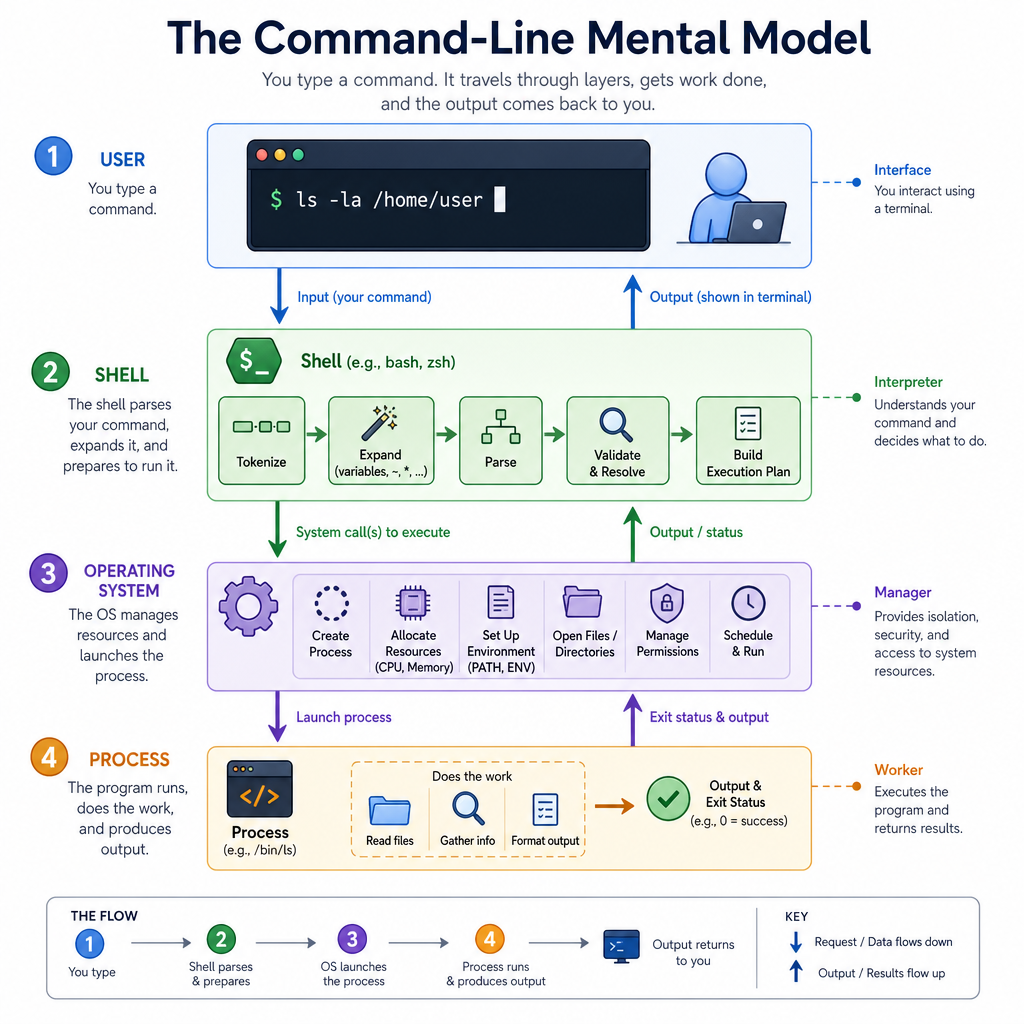
Terminal, shell, command
These words often get mashed together, but they play different roles:
- Terminal: the app window you type into
- Shell: the program that reads your commands and decides what to do
- Command: the instruction you send
- Process: a running program started by a command
A useful model:
You type:        node app.js
Terminal shows: text input/output
Shell parses:   command + arguments
OS starts:      a node process
Program prints: output back to terminal
This is similar to how the DOM lesson separated tree, node, and event. Clear names reduce debugging fog.
Common shells include bash, zsh, and PowerShell. The exact punctuation sometimes differs, but the core ideas are portable.
Shell Or Language
True or false:
The terminal itself is the same thing as JavaScript because both can run commands.
Move With Intent
Your location matters
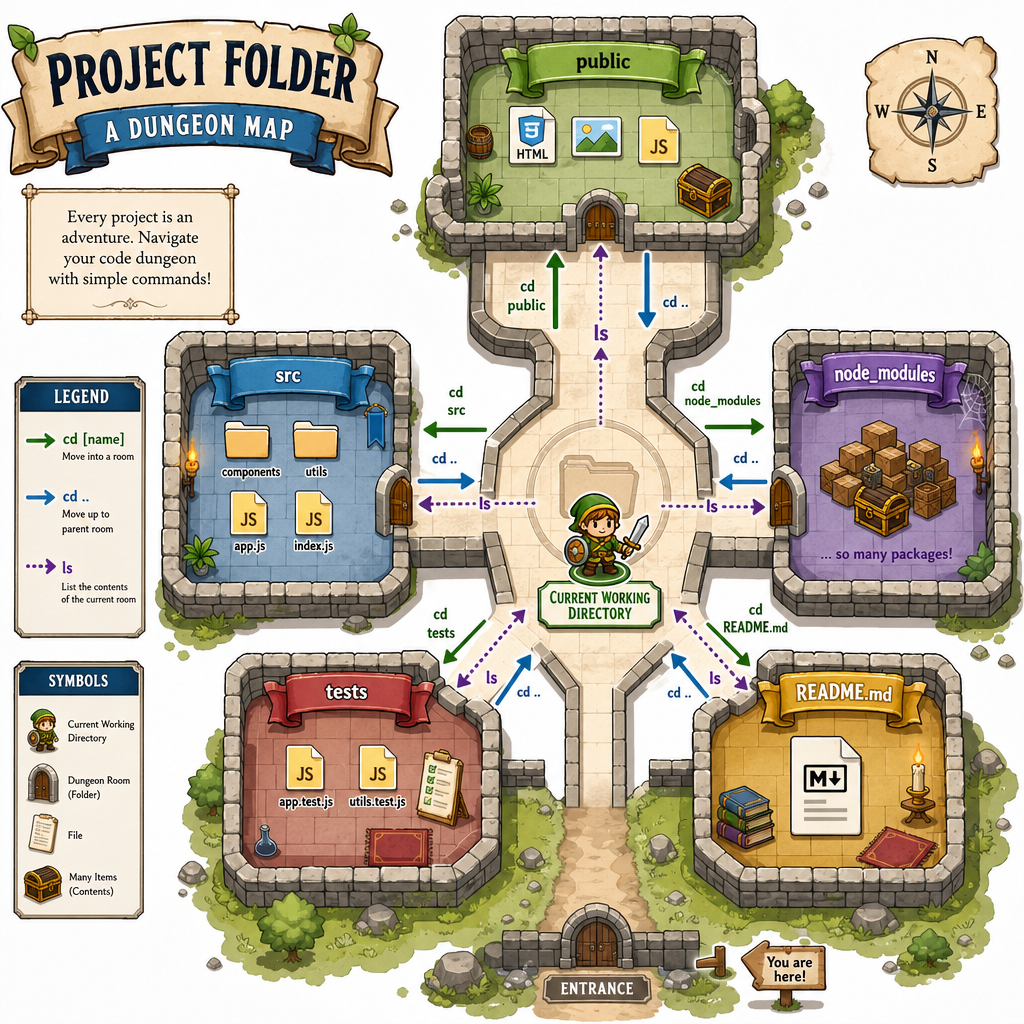
The shell always has a current working directory: the folder commands run “from.” Many confusing CLI bugs are really location bugs.
Core movement commands:
-
pwd— print current folder path -
ls— list files on macOS/Linux;diron Windows Command Prompt -
cd project-name— move into a folder -
cd ..— move up one folder -
cd ~— move to your home folder on macOS/Linux
Think of this like a game map. A command may be correct, but if your character is standing in the wrong room, the action targets the wrong thing.
Example: git status only makes sense when you are inside a Git repository. That builds directly on Git and Version Control: Git can only describe the snapshot state of the project you’re currently standing in.
Node Knows Location
JavaScript can inspect the shell context
When you run JavaScript with Node, your script inherits context from the command line. One of the most important pieces is the current working directory.
Save this as where-am-i.js, then run it with node where-am-i.js from different folders.
Notice the distinction:
-
process.cwd()is where the command was launched from -
__dirnameis where this script file lives
That difference explains a lot of “file not found” bugs in frontend tooling.
```javascript
console.log('Command launched from:');
console.log(process.cwd());

console.log('\nThis script file lives in:');
console.log(__dirname);

console.log('\nSame place?', process.cwd() === __dirname);
```
Find The Files
You open a terminal inside a project folder and want to see what files and folders are there.
Which command is the usual choice on macOS/Linux shells?
Paths Are Addresses
Relative vs absolute paths
A path is an address for a file or folder.
Two key forms:
- Absolute path: starts from the filesystem root
- Relative path: starts from your current working directory
In frontend projects, you constantly see relative paths: imports, image URLs, config files, test fixtures, and scripts.
A good staff-level habit is to ask: “Relative to what?” before changing path logic.
This JavaScript example uses Node’s built-in path module to show how a relative address becomes a concrete address.
```javascript
const path = require('path');

const relativePath = './src/components/Button.js';
const resolvedPath = path.resolve(relativePath);

console.log('Relative path:');
console.log(relativePath);

console.log('\nResolved from current working directory:');
console.log(resolvedPath);
```
Move Up
Fill in the command that moves from the current folder to its parent folder:
_____
Arguments Feed Scripts
Commands can carry inputs
A command is rarely just one word. It often includes arguments: extra values passed to the program.
For example, in node greet.js Ripley, the command is node, the script is greet.js, and Ripley is an argument your script can read.
This is the beginning of how CLI tools work. Formatters, test runners, bundlers, and generators all read arguments to decide what job to perform.
Save this as greet.js, then try:
node greet.jsnode greet.js Ripleynode greet.js "Action Movie Fan"
```javascript
const name = process.argv[2] || 'mystery guest';

console.log(`Welcome, ${name}!`);
console.log('Raw arguments after node and script:');
console.log(process.argv.slice(2));
```
Daily CLI Loop
A practical frontend loop
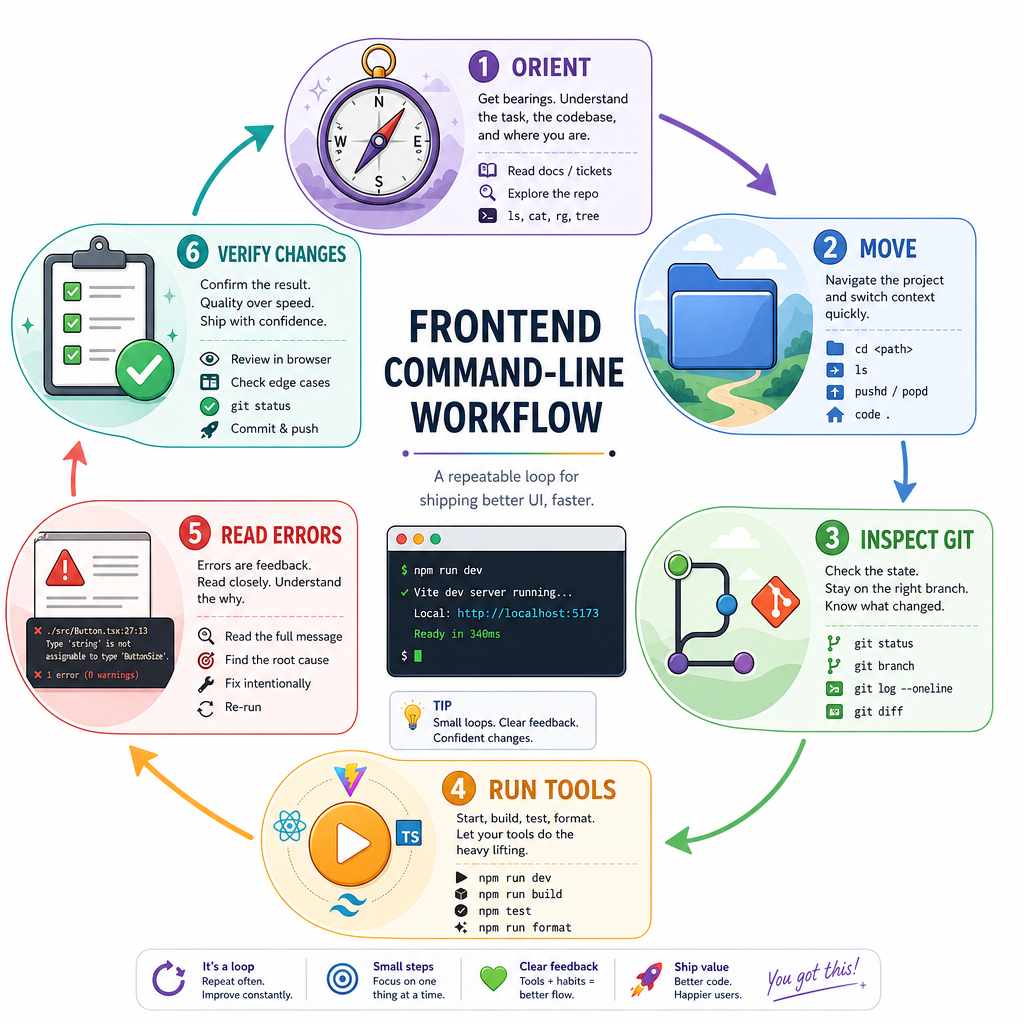
Here’s a grounded command-line rhythm for project work:
-
Orient:
pwd, then list files withlsordir -
Move:
cdinto the project or package you mean to change -
Inspect Git:
git statusbefore editing and before committing - Run local tools: use the project’s documented commands
- Read errors from top to bottom: identify the command, path, and failing file
- Return to Git: confirm only intended files changed
This is not about memorizing every command. It’s about building a reliable loop so tooling problems become solvable puzzles instead of jump scares.
As you move toward deployment next, this command-line confidence becomes the bridge between “it works in my browser” and “the project can be built, checked, and shipped.”